
Amazfit Cheetah 2 Ultra
Connect and Pair
Download the Zepp App
Scan the QR code on the product manual or the watch to download and install the Zepp App. For the best experience, please update the app to the latest version when prompted.
System Requirements: Android 7.0 or iOS 15.0 and above
First-Time Pairing
- When the watch is powered on for the first time, a pairing QR code will appear on the screen.
- Open the Zepp App on your phone and log in to your account.
- Tap the scan icon and scan the QR code displayed on the watch to complete pairing.
Note: The Zepp App can also be downloaded from the App Store or the Google Play Store.
Pair with a new phone:
Step 1: On the old phone
- Sync watch data in the Zepp App to ensure all data is backed up.
- Go to the device page and tap Unpair.
- For iOS: After unpairing in the app, go to Settings > Bluetooth, find the watch’s Bluetooth name, tap the ⓘ icon, and select Forget This Device.
- For Android: It is recommended to forget the pairing record in the phone’s Bluetooth settings.
Step 2: On the watch
- Restore the watch to factory settings and restart it.
Step 3: Pair with the new phone
- Follow the first-time pairing process to connect the watch to your new phone.
Watch System Update
- Keep the watch connected to your phone.
- Open the Zepp App and go to Device > Amazfit Cheetah 2 Ultra > General > System Update.
- Check for updates and tap Update Now if available.
Tip: When a system update push is received, we recommend updating promptly for optimal performance.
Wear a watch
- Adjust the strap to a comfortable fit—neither too tight nor too loose—allowing skin to breathe. This ensures comfort while enabling the sensors to function properly.
- For Accurate Blood Oxygen Measurement, please wear the watch correctly, avoiding placement on the wrist joint. Keep your arm flat and still, and tighten the strap appropriately to ensure a comfortable fit against the wrist skin. Note: Factors such as arm hanging or shaking, excessive arm hair, and tattoos may affect measurement accuracy or result in no reading.
- It is recommended to tighten the watch strap during exercise and then loosen it appropriately after exercise.
Basic Operations
Watch FacePage Gestures and Button Operations
|
Operation
|
Corresponding Results
|
|
Swipe down on the screen or press the UP button
|
Access the entry to the Notification Center and Control Center
|
|
Swipe up on the screen or press the DOWN button
|
Access Shortcut Cards
|
|
Swipe from left to right on the screen or press the SEL button
|
Access the Workout list
|
|
Swipe from right to left on the screen or press the BACK button
|
Access the App List
|
On the watch face, the operations of pressing the SEL button or pressing the BACK button can both be changed in Settings > Preferences > Shortcut Buttons.
Common Gestures and button Operations
|
Operation
|
Corresponding Results
|
|
Click Screen Focus State
|
Use this feature, select the current item, or proceed to the next step
|
|
Long press the watch face
|
Can activate watch face selection and watch face settings
|
|
Cover the screen
|
Turn off the screen
|
|
Slide the screen from left to right
|
On most secondary pages, you can return to the previous level page
|
|
Slide the screen up and down
|
Scroll or switch pages
|
|
Click the SELECT button in the upper right corner
|
Use this feature, select the current item, or proceed to the next step
|
|
Click the BACK button in the lower right corner
|
On most secondary pages, you can return to the previous level page
|
|
Click the UP button/DOWN button
|
Scroll or switch pages
|
|
Press and hold the UP button for 2 seconds
|
Turn on/off flashlight
|
|
Press and hold the Back button for 5 seconds or more
|
Power on, enter the shutdown and restart page, force restart
|
Control Center
Swipe down on the watch face or press the UP button, then swipe down again or press UP again to access the Control Center, where you can access system controls of the watch.
Supported Features:
- Default Display: Flashlight, Do Not Disturb Mode, Sleep Mode, Theater Mode, Calendar, Volume, Battery, Brightness, Find Phone, SOS Light Mode, Alarm Clock, Lock Screen, Settings, Bluetooth, Wi-Fi, Night Display, Water Eject, Always-On Display
- Addable: Bluetooth Headset, Buzzer Intensity, Barometric Altimeter, Compass, Countdown, Stopwatch, Text Size, Always-On Display, Bluetooth Headset
Swipe to the top of the Control Center and tap Edit to personalize your layout. You can add up to 24 controls.
Find Phone
1. Keep the watch connected to the phone;
2. On the watch face, pull down to open the Control Center, and tap the Find Phone button
The phone will vibrate, or you can click the ring button, after which the phone will ring;
3. Click "Find My Phone" in the app list, the phone will vibrate, and after clicking the ring button, the phone will ring.
Find Watch
When the watch is connected to the phone, open the Zepp App > My > Amazfit Cheetah 2 Ultra > Find Watch, and the watch will vibrate and ring.
Dial
Switch Watch Face
- After waking up the watch, long press the screen on the watch face interface to enter the watch face selection page;
- Swipe left or right to preview the watch faces available on the current watch (including built-in watch faces and synced online watch faces);
- Tap the watch face you need to use, and you can successfully switch.
Add Dial
In addition to the few watch faces pre-installed, you can synchronize your favorite online watch faces from the Watch Face Store on the Zepp App to the watch, or use your phone to take a photo or select an album image as a custom background watch face.
Add Online Watch Face :
1. Keep the watch connected to the phone, then open Zepp App > Devices > Amazfit Cheetah 2 Ultra > Watch Face Store;
2. Select your favorite watch faces and sync them to your watch. You can sync multiple watch faces and switch between them on the watch.
Add Custom Watch Face:
Keep the watch connected to the phone, open the Zepp App > Devices > Amazfit Cheetah 2 Ultra > Watch Face Store, and select the custom background watch face.
Delete Watch Face
When the watch storage is full, you will need to delete existing watch faces before adding new ones. Note: At least one watch face must remain on the watch.
- After waking up the watch, long press the screen on the watch face interface to enter the watch face selection page;
- Swipe left or right to preview the watch faces available in the current watch, including built-in watch faces, synced online watch faces, and custom watch faces;
- Swipe up the screen, and the watch face that supports deletion will display a delete icon, tap to delete this watch face.
Dial Component
Some watch faces support component editing. You can view various types of information such as steps, calories burned, weather, etc. through the watch face components, and you can also edit them to display the information you need.
Edit Dial Components:
- After waking up the watch, long-pressing on the watch face interface can enter the watch face management page, where you can change to other watch faces or edit components;
- Swipe left or right to preview the watch faces available for the current watch. An edit button will be displayed below watch faces that support component editing.

, tap the button to enter the editing page of this watch face;
- Select the component to be edited, click on the component or swipe the screen up and down to change the component;
- After completing the editing, press the up button to finish editing and enable this watch face.
Always-On Display
When enabled, the watch will not completely turn off the screen display in standby mode, and will still show the time and some watch face information. Enabling this feature will significantly reduce battery life.
Set Always-On Display:
- After waking up the watch, press the button on the watch face interface to open the app list, then enter Watch Settings > Display & Brightness > Always-On Display;
- Select the Always-On style and enable status of the Always-On display.
Status Indicators
Status points are displayed above the watch face to indicate that the watch is currently in certain states, such as the watch currently being in Theater Mode or a countdown app running in the background, etc.
Currently supported display states include:
- Low Battery
- Do Not Disturb Mode
- Sleep Mode
- Theatre Mode
- Stopwatch (click on the status point to jump to the app)
- Countdown (click on the status dot to jump to the app)
- Music is playing (click on the status dot to jump to the app)
- In progress (click on the status point to jump to the app)
- Charging
- Flashlight
- SOS Light Mode
Notifications and Calls
Notifications
The watch can display various notifications and reminders generated by the system and apps, and it can also receive and show notifications from phone. On the watch face, swipe down and tap the Notification card, or press the SEL button to open the Notification Center and view notifications.
Delete all notifications
There is a Delete All button at the bottom of the Notification Center list. Tap it to clear all notifications. After the watch restarts, the notifications will be cleared automatically.
Delete a single notification When a notification arrives, you can delete it using the Delete button at the bottom of the notification. You can also swipe left on a notification in the Notification Center list to delete it.
Turn off notifications
You can enable or disable notifications on the watch at Settings > Notifications. When notifications are turned off, the watch will no longer display any notifications or alerts, and the Notification Center entry will be hidden. However, alarms and low-battery alerts will still work. In addition, the watch allows you to independently turn on or off notifications from your phone and from individual watch apps. For example, if you go to Settings > Notifications > Calendar on the watch and turn off Allow notifications, calendar-related reminders will no longer pop up.
Silence notifications during workouts or when off-wrist
You can also customize how each app's notifications behave when the watch is off-wrist or during workouts. For example, on the watch go to Settings > Notifications > Calendar > Silence Alerts, and turn "In Workouts" On. After that, calendar-related reminders will no longer pop up while you are working out.
Phone Notifications
When the watch is connected to your phone properly, you can receive phone notifications on the watch.
Setting method:
Keep the watch connected with your phone, open the Zepp App, go to Profile > Amazfit Cheetah 2 Ultra > Notifications > App Notifications. At the bottom of the page, turn on Receive notifications from “Phone apps”, and enable the apps you want in the list below.
Note:
To enable this feature on an Android phone, you need to add the Zepp App to the allowlist or auto-run list in the phone's background so that the app always runs in the background. If the Zepp App is terminated by the phone's background process, the watch will be disconnected from your phone, and you can not receive app notifications on the watch.
For iOS users, right after the watch is activated, only a limited number of apps are available for notification settings. As you receive notifications from more apps on your phone, more apps will appear on the App Notifications page.
Morning Updates
After enabling the Morning Updates feature, the device will send a short report every morning when you wake up, so that you can quickly browse information such as today's weather conditions, sports health status, and personal affairs, and help you fully prepare to start a new day.
You can disable the Morning Updates function in Device > Settings > Notifications > Morning Updates; you can also adjust the content and display order of Morning Updates.
The above settings can also be set by opening the Zepp App > Profile > Amazfit Cheetah 2 Ultra > Notifications > Morning Updates.
Bluetooth calling
- After the Bluetooth phone function is turned on, pair the watch with your phone via Bluetooth and maintain a normal connection. When your phone receives an incoming call, you can answer it through the watch.
- You can also make a Bluetooth call through the "Phone" app on the watch while maintaining a Bluetooth connection.
Bluetooth phone setup method:
Method 1: Enter "Zepp App > Device > Amazfit Cheetah 2 Ultra > Device App Settings > "Phone" page, and turn on the "Call via Watch" switch .
Method 2: Pair directly via the "Settings > Bluetooth" page on the watch or phone:
- Go to the "Phone > Settings > Bluetooth" page, confirm that the phone's Bluetooth is turned on and discoverable, then go to the "Watch > Settings > Network & Connectivity > Bluetooth" page, and confirm that the watch's Bluetooth is turned on.
- In the Bluetooth device search results on the phone's Bluetooth page, find the device named after your own watch, click to pair; or in the Bluetooth device search results on the watch's Bluetooth page, find the device named after your own phone, click to pair.
Call Reminder
You can set it to "Incoming Call" in "Zepp App > Device > Amazfit Cheetah 2 Ultra > App Settings > Phone". After the function is enabled, while keeping the phone connected to the watch, when the phone receives an incoming call, the watch will pop up a reminder and allow you to ignore or hang up.
Shortcut Cards
Swipe up on the watch face to go to the Shortcut Cards page, where you can easily use and view various features and information:
- You can add frequently used cards to this page for quick access, such as recent calendar events, the next alarm, or recent heart-rate data.
- You can also swipe to the bottom of the Shortcut Cards page and tap Edit, or open Zepp App > Profile > Amazfit Cheetah 2 Ultra > Shortcut Cards to set which cards are shown and adjust their order.
Press buttons for quick start-up
You can go to Watch > Settings > Preferences >Shortcut Buttons and select the app to be quickly launched, and then you can quickly open the previously set app by operating the corresponding button.
Triggering methods:
- Long press SEL Button
- Press the SEL Button
- Long press UP Button
- Long Press Down Button
- Double Press BACK Button
- Press the BACK button
Workout
Workout Mode
The watch supports over 180+ sports modes, including running and walking, cycling, swimming, outdoor sports, indoor sports, dance, combat sports, ball games, water sports, ice and snow sports, leisure sports, board and card games, and other sports.
Workout List
- Press the SELECT button on the watch face (if Quick Start is set to Workout) or slide the screen from left to right to open the Workout list;
- You can select the workout to start in the workout list;
- Selecting "More Workouts" allows you to view all sports modes and directly start workout;
- Click

You can edit the motion list, supporting operations such as adding, deleting, and sorting workout items.
Select Workout
After entering the workout list, swipe up or down on the screen or press the UP/DOWN buttons to select the workout you need. Tap the item on the screen to enter the corresponding workout.
Start Workout
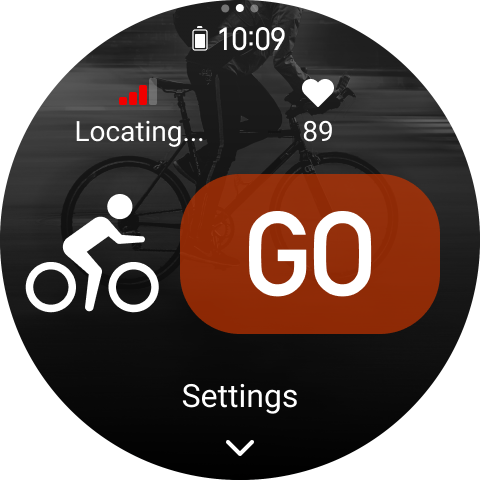
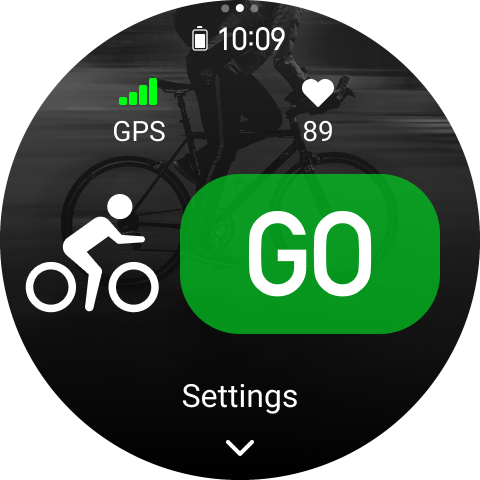
After entering the sports preparation page, for some sports items that require positioning, the device will automatically search for GPS. The red status indicates that it is searching for satellites, and the green status indicates that satellite search is successful. It is recommended to click the sports icon to start the sport after the satellite search is successful, which can improve the calculation accuracy of sports data;
For workout items that do not require positioning, on the workout preparation page, you can directly click the GO icon to start the workout.
Motion Operation
Page turning during movement
During exercise, you can swipe up or down to turn pages, or press the UP/DOWN buttons to perform up/down page turning operations; swiping left or right allows for left/right page turning. The left side of the exercise data page is the exercise operation interface, where you can perform exercise operations such as pause and end; the right side of the exercise data page is the music operation interface, which can control the music playback of the watch application or the music playback of the phone.
Touch lock and button lock during exercise
During exercise, the touchscreen function can be turned off, and it can be set via Exercise Settings > Touch Lock.
The lock button function is supported during exercise and can be set via Exercise Settings > Button Lock.
button Definitions During Movement
- Click the UP/DOWN button to turn the page
- Click the BACK button during exercise to perform segmentation/grouping
- Long press the UP button to turn the flashlight on/off
- When button lock is enabled, long press the SEL button to unlock the buttons
- When the button lock is off, click the SELECT button to pause/continue the motion
- When paused, click the BACK button to switch between the operation page and the data page
- Long press the BACK button to return to the watch face and move the workout to the background
Exercise Lock Screen State
After turning off the touchscreen, during the workout, when the screen is turned off/enters AOD mode/after screen timeout, the touchscreen will be locked and displayed in the status bar

Icon.
At this time, the touch screen cannot operate. It is necessary to unlock the screen by double-clicking the screen before operation, or directly perform any operations through the buttons.
During swimming sports, the touch screen will be continuously disabled, and can only be used after the sport ends.
Movement Operation Page
On the left side of the exercise data page is the exercise operation interface, where exercise operations such as pause and end can be performed.
- Pause/Continue
Click to pause or resume the movement;
- End
Click to end the current exercise and save;
- Motion Assistance
Click to modify some motion assistance settings (modification is only supported when paused);
- Continue Later
Click to retain the workout and return to the watch face; re-entering the workout app will return to the workout pause page;
- More
Click to modify some settings;
Motion Settings
Swipe up on the exercise preparation page to enter the exercise settings, where you can configure the current exercise mode. The supported settings vary for different exercises.
Motion Assistance
The Sports Assistant provides you with auxiliary tools during exercise, including exercise goals, exercise reminders, automatic segmentation, automatic pause, cadence assistant, virtual rabbit, etc. The sports assistance provided varies for different sports events.
Moving Target
In the motion target settings, turn on motion targets such as target distance, target time, target calorie consumption, and exercise effect. The watch will display the current target progress in real time during exercise; it will provide a prompt after reaching the set motion target. Different sports provide different motion targets.
Exercise Reminder
Exercise reminder settings provide you with control over various types of reminders, such as whole-kilometer reminders, heart rate reminders, etc. You can set them as needed in the exercise settings. Different sports events offer different exercise reminders.
1. Distance Reminder
During exercise, when the distance reaches each whole kilometer/mile, the watch will vibrate and display the time taken for that whole kilometer/mile.
Setup Steps: Sports Mode > Sports Assistance > Sports Reminder > Distance, select the desired distance and turn the reminder on or off.
2. Safe Heart Rate Alert
During exercise, if the current heart rate is detected to exceed the safe heart rate you have set, the watch will alert you through vibration and the interface, at which point you need to slow down or stop.
Setup Steps: Exercise Mode > Exercise Assistance > Exercise Reminder > Safe Heart Rate, select the safe heart rate value, and turn on or off your safe heart rate reminder.
3. Heart Rate Zone Reminder
During exercise, if the current heart rate is detected to be outside the set heart rate range, the watch will alert you through vibration and the interface, at which point you need to increase or decrease your speed to keep your heart rate within the set range.
Setup Steps: Exercise Mode > Exercise Assistance > Exercise Reminder > Heart Rate Zone, select the heart rate zone, and turn on or off your safety heart rate reminder.
4. Pace Reminder
You can set the fastest/slowest pace value. During exercise, if the current pace is detected to exceed the set pace, the watch will remind you through vibration and the interface.
Setup Steps: Sports Mode > Sports Assistance > Sports Reminder > Pace, select the pace, and turn on or off your pace reminder.
Additionally, it also supports: high speed reminder, number of trips reminder, low speed reminder, stroke rate reminder, cadence reminder, time reminder, calorie reminder, water intake reminder, energy replenishment reminder, return reminder, rest time reminder, altitude reminder, target altitude reminder, etc.
Automatic Segmentation
Some sports items can use the split function during exercise. In the exercise settings, you can set the automatic split distance, and once the set distance is reached during exercise, it will automatically split and provide a reminder; meanwhile, when the screen is on and not locked during exercise, a single click on the BACK button of the watch can perform a manual split.
Whether it is manual or automatic segmentation, the watch will record the movement details of each segment at each segmentation node. After the exercise ends, you can view the segment details.
Setup Steps: Motion Mode > Motion Assistance > Automatic Segmentation, set the automatic segmentation distance; manual segmentation does not require setup.
Auto Pause
Turn on or off auto-pause in the auto-pause settings. Once turned on, the movement will automatically pause when the movement speed is too low. When the speed increases to a certain threshold, the movement can resume. Manual operation can also be used to resume the movement during the pause. Some movements allow customizing the auto-pause threshold.
Virtual Rabbit
By setting the pace value of the virtual rabbit, the current pace and the leading/lagging distance from the rabbit can be displayed in real-time during the run, and the positional relationship with the rabbit will be shown through the UI.
Setup Steps: Outdoor Run/Treadmill > Training Assistant > Virtual Rabbit, set the pace of the rabbit, and turn your virtual rabbit on or off.
Step Frequency Assistant
You can set the steps per minute and the reminder frequency. During exercise, the watch will vibrate/ring according to the set frequency, and you can follow the vibration/ringing frequency to control your steps per minute.
Setup Steps: Movement Mode > Movement Assistance > Step Frequency Assistant, select the step frequency per minute and the reminder frequency, and turn on or off your Step Frequency Assistant.
Intelligent Start
After enabling this feature, when on the exercise preparation page, once positioning is successful and the device detects that you are in motion, it will intelligently and automatically enter the exercise state and start recording. Enabling this feature can prevent data loss caused by forgetting to click "Start Exercise" during the positioning process.
Setup Steps: Specific Exercise Mode (e.g., Outdoor Running) > Exercise Assistance > Smart Start > Enable
Training
Training Template
Some sports items can use the training template function during exercise. This function needs to be edited in "Zepp App > Sports > More > Training Template", where you can edit the training template for a specific sports item, set training steps, step types, reminder content, number of cycles, etc., and synchronize it to the watch after editing is completed.
After synchronizing to a training template for a specific sports item on the watch, open the watch app > Sports Item > Training > Training Template, select the training template you want to use, and click GO to start using the training template immediately.
When the watch is in use, it will follow the edited template, and upon completion of the content of the current stage, it will automatically jump to the next stage.
Interval Training
Some exercise items can use the interval training function during exercise. On the watch, you can directly edit the training phase, rest phase, and number of cycles of interval training. When using interval training, it will follow the edited template, and automatically jump to the next phase upon completion of the current phase.
Editing during the training phase and rest phase supports distance-based, time-based, lap-based, and custom modes. The supported editing content varies among different sports.
Navigation
Watch-side trajectory import
You can upload track files in formats such as GPX, TCX, and KML to the Zepp App, then send them to the device via the App, and you can view and use the route for navigation on the device.
Setup Steps: Trajectory File > Open via Zepp App > Save Trajectory > Send to Watch
Save current location
In motion items that support navigation, it is possible to operate and save the coordinates of the current position, which can be used in navigation.
Setup Steps: Before/ During Exercise > Navigation > Save Current Location
Trajectory Navigation
You can enter through the entrance of my route or my location point, select the target trajectory or location point to start trajectory navigation, and after activation, the trajectory page will provide you with correct route guidance during movement. This feature is only applicable to some outdoor activities.
Setup Steps: Sports > Navigation > My Routes/My Location > Select Track > Start Navigation
Navigation Reminder
When using route navigation, enabling navigation reminders will provide alerts at turns along the route. This feature is only applicable to some outdoor activities.
Setup Steps: Sports > Navigation > Navigation Settings > Navigation Reminders
Altitude Overview
When using trajectory navigation, an overall elevation overview page of the route will be automatically parsed and generated during the movement, allowing users to view the overall elevation changes of the current route and the real-time position at any time during the movement.
Slope Section Analysis
When using trajectory navigation, when the elevation of the current route changes significantly, it will automatically parse and generate slope segment information, and mark the positional relationship between the current location and the slope segment.
Note: Not all trajectory routes can generate slope segment information; only those with significant elevation fluctuations can generate such information.
Return to Starting Point
During this activity, you can return to the starting point of the activity via navigation, supporting both straight-line return and return along the original route. This feature is only applicable to some outdoor activities that have generated GPS tracks during the activity.
Return in a straight line
When this feature is enabled, the device's trajectory page will connect a straight line based on your current location and the starting point of this movement, and following this straight line can guide you back to the starting point of this movement.
Setup Steps: During Exercise > Pause Exercise > Navigation > Return to Starting Point > Return in a Straight Line
Note: The straight return route is purely drawn based on GPS location points and cannot account for non-traversable terrain features such as mountains, rivers, canyons, and buildings. Please navigate according to the actual situation.
Return along the original route
When this feature is enabled, the device's trajectory page will navigate according to the route trajectory you have traveled, and navigating along this trajectory can return you to the starting point of this exercise.
Setup Steps: During Exercise > Pause Exercise > Navigation > Return to Starting Point > Return Along the Original Route
More
Data Item Editing
Supports editing data items during motion, editing data page formats and data item content, and adding/deleting data pages and motion charts.
The data page format supports setting to 1 item, 2 items, 3 items, 4 items, 5 items, 6 items, 7 items, or 8 items per page;
Sports data items support over 150 data items (the data items supported vary by different sports);
Supports real-time charts for over 8 types of sports, including pace, elevation, etc.;
Supports adding up to 4 pages of motion extension data pages;
Supports adding up to 10 pages of data/sports charts;
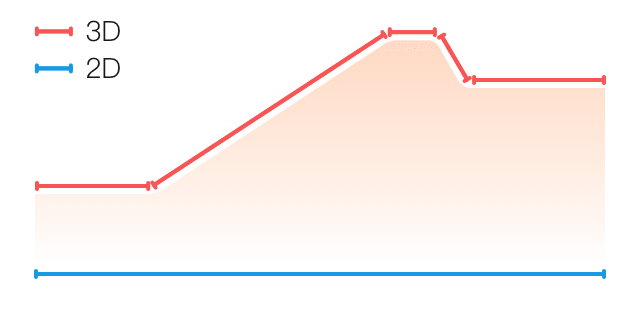
3D Data Mode
For some sports modes, you can set whether to turn on 3D data in the sports settings. After turning on, the watch will calculate the distance according to the 3D data as shown in the figure above. As shown in the example figure, after turning on the 3D distance, the slope distance of the route will be calculated, taking into account changes in altitude and slope, and the calculated distance will conform to the true distance of the route; if the 3D distance is not turned on, only the projected distance of the route will be calculated, that is, the 2D distance shown in the figure.
Wearing Hand
Some sports, such as tennis, require the watch to be worn on the racket hand, and ensuring that the actual wearing hand matches the set wearing hand can make sports data more accurate.
If the right hand is the holding hand, then the watch needs to be worn on the right hand.
Setup Steps: Tennis/Rower > Settings > More > Wrist
Pool Length
The length of the lane in the pool you are swimming in. The watch will calculate swimming data based on the lane length you set.
Please set the corresponding lane length each time you change the pool to enable the watch to accurately evaluate your swimming data.
Setup Steps: Pool Swimming > Settings > More > Lane Length
Recalibrate
If, after multiple calibrations, there is still a significant difference between the distance recorded by the watch and the actual distance when using the treadmill exercise mode, you can recalibrate the treadmill recording algorithm to help you record treadmill data more accurately.
Setup Steps: Treadmill > Settings > More > Recalibrate
Downswing Direction
Some sports, such as golf swing, require the device to be worn on the hand that is consistent with the downswing direction, which can make the sports data more accurate.
If the downswing direction is to the left (i.e., hitting the ball from right to left), then the watch needs to be worn on the left hand.
Setup Steps: Golf Swing > Setup > More > Downswing Direction
Runway Distance & Runway Selection
For the running event on the playground, it is necessary to set the track distance and lane number, which can make the sports data more accurate.
Setup Steps: Running on the Playground > Settings > More > Running on the Playground Settings > Playground Distance & Track Selection
Real-time physical state
Real-time physical fitness status evaluates the body's state and exercise performance during physical activity. A higher value indicates a better current state, and vice versa. It takes effect during outdoor running and track running, and real-time physical fitness status reminders will pop up during exercise.
- Reminder timing: The device will issue a reminder both when the physical state is first generated and when there is a change in the state interval.
- Reminder condition: Real-time physical fitness status data will only be generated after a single exercise reaches the maximum oxygen uptake condition.
A real-time physical state chart will be displayed in the exercise record. You can manually turn off the real-time physical state function, path: Outdoor Run/ Track Run > Settings > More > Real-time Physical State.
Real-time physical fitness status intervals and their meanings:
Excellent: ≥ +10% Very Good: +5 ~ +9% Normal: -5 ~ +4% Fatigue: -10 ~ -4% Overfatigue: < -10%
Special Exercise Mode - Swimming
Sports Terminology
Lap: Completing one length of the swimming lane in the pool swimming mode.
Paddling: Perform a complete paddling motion while wearing a watch.
Stroke rate: the number of strokes per minute.
DPS: The distance traveled in one complete stroke.
SWOLF: SWOLF is an important indicator score for swimming, equivalent to a comprehensive evaluation of your swimming speed. In pool swimming mode, SWOLF = time per lap (in seconds) + number of strokes per lap. In open water swimming mode, SWOLF is calculated based on 100 meters per lap. A smaller number indicates higher swimming efficiency.
Swimming Stroke Recognition
The watch will recognize the swimming stroke in swimming mode and display the stroke you primarily use.
|
Swimming Stroke
|
Definition
|
|
Freestyle
|
Freestyle Stroke
|
|
Breaststroke
|
Breaststroke
|
|
Backstroke
|
Backstroke
|
|
Butterfly Stroke
|
Butterfly Stroke
|
|
Medley
|
A swimming session uses more than one stroke, with each stroke accounting for a similar proportion
|
Touchscreen in Swimming
To prevent accidental touches and interference from water on the touchscreen, the watch will turn off the touchscreen function after swimming starts. At this time, you can control the workout through the watch buttons, and the watch will turn on the touchscreen function again after the workout is paused or ends.
Special Exercise Mode - Golf
Download
You need to download the corresponding golf course map in advance to enable the golf function. Go to Zepp App > Device Page > Amazfit Cheetah 2 Ultra > Golf > Find Course.
- Search based on the input location and search radius
- Select the corresponding stadiums, multiple selection supported
- Click "Download", and the watch will automatically download the map
Manage
On your phone, you can find the downloaded maps in Zepp App > Device Page > Amazfit Cheetah 2 Ultra > Golf:
- Swipe right to delete the phone's download history
- Click on a specific stadium to view information such as map, address, phone number, etc.
- Click on a specific golf course and transfer it to the watch again
On the watch, you can delete the downloaded map resources in Watch Settings > Golf.
Use
After completing the map download, the golf function on the watch can be enabled in two ways:
- On the watch face, click the BACK button, then select the Watch App List > Golf App, and click to open it;
- On the watch face, click the SELECT button, go to Sports List > Golf, and click to start;
After turning it on, select a specific golf course, complete the initialization settings such as handedness, unit, driving distance, scoring method, tee box, etc., and then you can start the activity.
Supported during the event
- Press the UP/DOWN buttons to view the course map, pure data panel, last swing analysis, and scoring input
- View the course map, and swipe left or right to view button course hazards and green information
- View the stadium map, click to zoom in for details, measure the distance between any points, and set markers
- Supports changing holes and changing scorecards
After the end of the round, the watch will display information such as score, hole, duration, putts, distance, steps, etc., and the Zepp App will automatically synchronize the corresponding sports record information.
Special Sports Mode - Ultramarathon
How to Use:
- You can set the rest mode before exercise
Setup Steps: Ultramarathon > Sports Assistance > Rest Settings
Sports GPS Positioning
If you choose to start outdoor exercise, please wait on the exercise preparation page until GPS positioning is successful before clicking GO to start the exercise, so as to record complete exercise data and avoid inaccurate exercise data caused by lost exercise tracks.
Positioning Guide:
- If you receive a prompt to update AGPS after exercise, please first open the Zepp App and connect your watch, then retry after updating AGPS; otherwise, it may result in an excessively long signal search time or even search failure.
- During positioning, the GPS signal icon will continuously flash. GPS signals are better in open areas, which is conducive to quick positioning. If there are nearby buildings blocking the signal, it may affect signal strength, resulting in an excessively long search time or even search failure;
- After successful positioning, the GO button will light up, and at this time, the GPS signal icon indicates the current GPS signal strength.
AGPS (Assisted GPS): A type of GPS satellite orbit information data that can help the watch perform GPS positioning more quickly.
Automatic Motion Recognition
Supported recognized exercise types include brisk walking, indoor walking, outdoor running, treadmill running, outdoor cycling, pool swimming, elliptical training, and rowing machine, totaling 8 exercise modes.
Automatic motion recognition means that when you are exercising, after meeting the corresponding motion characteristics and lasting for a certain period of time, the watch will automatically determine the type of exercise and automatically record a single exercise session.
Settings can be made in Settings > Motion > Motion Recognition.
Type: Check a certain exercise type to enable the automatic recognition function for this exercise.
Sensitivity: The higher the sensitivity, the faster the time to recognize motion; the lower the sensitivity, the relatively longer the recognition time. It can be selected according to individual needs.
*Continuous monitoring of the exercise state will significantly reduce battery life. When no exercise item is selected, the exercise recognition function will not be activated. When exercise is recognized as being in progress, some data cannot be synchronized with the App.
Voice broadcast during exercise
When a motion reminder is triggered during exercise, when exercise is segmented, when manually pausing or resuming exercise, and when ending exercise to enter the exercise record, all support voice announcements, with the announced content including exercise data summaries and operation reminders.
Activation Method: Settings > Exercise > Voice Broadcast
Requires connection to a Bluetooth headset/speaker device for playback. Setup path: Watch > Settings > Bluetooth. For more information, please refer to the Bluetooth settings section.
Exercise Record
When the exercise ends, the exercise record will be automatically saved to the exercise record app. If the exercise duration is too short, you will be asked whether to save it. Due to limited storage space, it is recommended to synchronize the data to the App in a timely manner after exercise to prevent the exercise data from being overwritten.
Watch-side exercise records
The content of sports records includes information such as sports data, sports trajectory (GPS sports support), segment/group information, and completion of sports goals.
After the workout ends, it will immediately jump to the workout record details page. You can also view the details of recent workout records through the workout record app. The watch can store up to the most recent 100 workout records.
Best Sports Record
The exercise record will save the best records of some exercise items, including the longest distance, the longest exercise time, etc.
App-side exercise records
The App-side sports record data has richer dimensions and also supports dynamic trajectory and sharing functions.
App Path: Zepp App > Sports Page > Sports Record
Physiological Indicator Explanation
The watch provides a wealth of sports physiological indicators, and the evaluated scores can provide corresponding references for your exercise. These indicators can be viewed in the exercise record or exercise status application, including current training load, full recovery time, maximum oxygen uptake data, training effect, etc.
For detailed explanations of training load, full recovery time, and maximal oxygen uptake, refer to the "Exercise Status" application.
Training Effectiveness (TE)
Training Effect (hereinafter referred to as TE) is an indicator used to measure the effectiveness of a single exercise session in improving aerobic capacity. When wearing a watch during exercise, the TE score starts at 0.0 and accumulates as you continue to exercise. The score ranges from 0.0 to 5.0, with different score ranges representing different effects. A higher score indicates greater exercise intensity and more stress on the body, but it also suggests that the exercise may be more effective. Of course, when TE reaches 5.0, you should pay attention to whether the body load is too high.
|
Aerobic TE Score
|
Effect on improving aerobic exercise capacity
|
|
0.0-0.9
|
This exercise has no effect on improving aerobic capacity
|
|
1.0-1.9
|
This exercise helps improve endurance and is also suitable as a post-workout recovery training
|
|
2.0-2.9
|
This exercise is somewhat helpful for maintaining aerobic exercise capacity
|
|
3.0-3.9
|
This exercise significantly contributes to the improvement of aerobic capacity
|
|
4.0-4.9
|
This exercise has a significant effect on improving cardiopulmonary capacity and aerobic exercise capacity.
|
|
5.0
|
Non-professional athletes should do a good job in post-exercise recovery.
|
|
Anaerobic TE Score
|
Effect on improving anaerobic exercise capacity
|
|
0.0-0.9
|
This exercise has no effect on improving anaerobic exercise capacity
|
|
1.0-1.9
|
This exercise has a minor effect on improving anaerobic exercise capacity
|
|
2.0-2.9
|
This exercise is somewhat helpful for maintaining anaerobic exercise capacity
|
|
3.0-3.9
|
This exercise significantly contributes to the improvement of anaerobic exercise capacity
|
|
4.0-4.9
|
This exercise has a significant effect on improving anaerobic exercise capacity
|
|
5.0
|
Non-professional athletes should do a good job in post-exercise recovery
|
The TE score is evaluated based on your personal information, heart rate, and speed during exercise. A lower TE score does not mean there is a problem with your exercise; it only indicates that the current exercise is relatively easy and has no significant effect on improving aerobic capacity (for example, if you go for a 1-hour jog, the TE score will still be low).
How to obtain?
All sports activities that can monitor heart rate data will display the TE score for the current session after completion, and provide relevant evaluations or suggestions. Subsequently, it can also be viewed again in each sports record.
motion state
Data in the exercise state includes exercise load, full recovery time, and maximal oxygen uptake. The device will calculate these metrics based on your personal information and the data generated during exercise. As the device is used and data accumulates, we will gain a better understanding of your body and exercise data, and the evaluation of these metrics will become increasingly accurate.
VO₂ Max (Maximum oxygen uptake)
VO₂ Max (unit: ml/kg/min) refers to the maximum amount of oxygen the body can take in and utilize during maximal-intensity exercise. It is a key indicator of aerobic capacity. A high VO₂ Max generally represents superior aerobic performance and is particularly important for endurance athletes.
VO₂ Max is highly individualized, with reference standards varying by gender and age. Devices assess your exercise capacity based on personal information, as well as heart rate and speed during physical activity, and this evaluation dynamically adjusts as your fitness level changes. It should be noted that everyone has an inherent upper limit for the VO₂ Max, which is determined by their physiological conditions.
Based on VO₂ Max scores, athletic ability is classified into the following seven levels: Very poor, Poor, Fair, Average, Good, Very good, Excellent.
VO₂ Max levels for males:
|
Age
|
Very Poor
|
Poor
|
Fair
|
Average
|
Good
|
Very good
|
Excellent
|
|
20-24
|
<32
|
32-37
|
38-43
|
44-50
|
51-56
|
57-62
|
>62
|
|
25-29
|
<31
|
31-35
|
36-42
|
43-48
|
49-53
|
54-59
|
>59
|
|
30-34
|
<29
|
29-34
|
35-40
|
41-45
|
46-51
|
52-56
|
>56
|
|
35-39
|
<28
|
28-32
|
33-38
|
39-43
|
44-48
|
49-54
|
>54
|
|
40-44
|
<26
|
26-31
|
32-35
|
36-41
|
42-46
|
47-51
|
>51
|
|
45-49
|
<25
|
25-29
|
30-34
|
35-39
|
40-43
|
44-48
|
>48
|
|
50-54
|
<24
|
24-27
|
28-32
|
33-36
|
37-41
|
42-46
|
>46
|
|
55-59
|
<22
|
22-26
|
27-30
|
31-34
|
35-39
|
40-43
|
>43
|
|
60-65
|
<21
|
21-24
|
25-28
|
29-32
|
33-36
|
37-40
|
>40
|
VO₂ Max levels for females:
|
Age
|
Very Poor
|
Poor
|
Fair
|
Average
|
Good
|
Very good
|
Excellent
|
|
20-24
|
<27
|
27-31
|
32-36
|
37-41
|
42-46
|
47-51
|
>51
|
|
25-29
|
<26
|
26-30
|
31-35
|
36-40
|
41-44
|
45-49
|
>49
|
|
30-34
|
<25
|
25-29
|
30-33
|
34-37
|
38-42
|
43-46
|
>46
|
|
35-39
|
<24
|
24-27
|
28-31
|
32-35
|
36-40
|
41-44
|
>44
|
|
40-44
|
<22
|
22-25
|
26-29
|
30-33
|
34-37
|
38-41
|
>41
|
|
45-49
|
<21
|
21-23
|
24-27
|
28-31
|
32-35
|
36-38
|
>38
|
|
50-54
|
<19
|
19-22
|
23-25
|
26-29
|
30-32
|
33-36
|
>36
|
|
55-59
|
<18
|
18-20
|
21-23
|
24-27
|
28-30
|
31-33
|
>33
|
|
60-65
|
<16
|
16-18
|
19-21
|
22-24
|
25-27
|
28-30
|
>30
|
How is it obtained?
1. Enter accurate personal information in the Zepp app;
2. Wear the device and start one of the following activities: Outdoor running, Track run, Ultramarathon, or Trail running;
3. During the activity, maintain a running speed continuously exceeding 6 km/h (10 min/km) or 3.7 mph (16 min/mile) for 10 minutes. Throughout this period, your heart rate must be consistently recorded and reach 75% of your maximum heart rate.
*When using the Amazfit Helio Strap / Amazfit Helio Ring, starting an Outdoor runnning session from the Zepp app supports VO₂ Max calculation. Please ensure that the Amazfit Helio Strap / Amazfit Helio Ring is listed as the first device in the device list, and that both the device and the phone remain connected throughout the activity; otherwise, the calculation result may be affected. Except for the Amazfit Helio Strap / Amazfit Helio Ring, starting an Outdoor running from the Zepp app using other devices does not support VO₂ Max calculation. To calculate VO₂ Max with other devices, please start the activity directly from the device.
How can I view it?
You can view the current VO₂ Max in the watch's workout status app. You can also view the VO₂ Max history and variation trends in the app.
exercise load
Exercise load is calculated based on your EPOC (Excess Post-exercise Oxygen Consumption) status. The longer the exercise duration and the higher the intensity, the higher the value. We have calculated the total exercise load over the past 7 days, which represents the burden on your body caused by your recent physical activity.
Exercise load has three intervals, namely: low, moderate, and high.
If the value is too low, it will not contribute much to improving athletic performance; if the value is too high or extremely high, the body will feel more fatigued, which not only fails to effectively improve athletic performance but may also lead to more sports risks. If you wish to continuously improve athletic performance within the body's tolerance, it is recommended to keep the exercise load within a moderate range.
The moderate range is calculated based on your recent and long-term exercise data, and will become more and more accurate as you use it.
How to obtain:
Start the exercise mode on the device to exercise. Once the exercise volume reaches the minimum unit of exercise load, you can obtain the exercise load for the current session. The accumulated exercise load over the past 7 days can be viewed in the exercise status application on the watch.
How to view:
You can view the exercise load in the watch's exercise status application. You can also view the trend of exercise load changes in the App.
Complete recovery time
Full recovery time is the recommended time for the body to fully recover. After each exercise session, recovery recommendations will be provided based on the latest exercise heart rate to help you recover better and plan your workouts reasonably, thereby avoiding exercise injuries.
|
Full recovery duration
|
Exercise Recommendations
|
|
0-18 hours
|
You have completed or are close to full recovery and can engage in slightly higher-intensity improvement training
|
|
19-35 hours
|
You can train as usual and get ready to strengthen your physical fitness again
|
|
36-53 hours
|
Appropriately reducing the training intensity can allow you to reap the benefits of exercise from the previous training session, and you can engage in some recovery exercises to relieve physical fatigue
|
|
54-96 hours
|
Appropriate rest allows you to reap the benefits of exercise from the previous high-intensity training
|
Recovery Heart Rate
The device will automatically measure the recovery heart rate within 3 minutes after the exercise ends. The results of the recovery heart rate will be displayed in the heart rate chart section of the exercise record on the Zepp App and can be viewed by swiping horizontally.
If the exercise is not ended in a timely manner after it is paused, it will also affect the accuracy of the recovery heart rate. If another exercise is started after the exercise, the measurement of the recovery heart rate will be terminated.
To ensure the timeliness and effectiveness of heart rate data measurement during recovery, it is recommended that: 1. End the exercise in a timely manner; 2. Wear the watch properly within 3 minutes after the exercise ends; 3. Wait at least 3 minutes after finishing the previous session before starting the next exercise.
Zepp Sports Coach
Zepp Sports Coach is mainly designed to assist users who have not developed regular exercise habits in their daily workouts, guiding them on what type of exercise to do, for how long, and at what intensity, so as to maintain a healthy exercise pattern.
Initiate Plan
Find the Zepp App > Sports Page > Zepp Sports Coach Card, click on Customized Plan, fill in the exercise goals, exercise status over the past 1 to 2 months as guided, and select rest days and start date to start the plan.
View Plan
After successfully setting up a training plan on the Zepp App, you can view the daily plan schedule in the Zepp Sports Coach app on the device or in the Zepp Sports Coach details page under Zepp App > Home > Zepp Sports Coach.
Set Reminder
In the Zepp Sports Coach app on the device, slide to the rightmost page to set the reminder time for training.
Execution Plan
You can quickly start a workout mode to begin exercising in Device > Zepp Sports Coach App, or you can select a workout mode to start exercising in Device > Sports. All workout records will be included in the daily training statistics. During the workout, please wear the device properly so that you can promptly sync the workout records to the Zepp App after the workout.
Modify and Terminate the Plan
On the Zepp App > Zepp Sports Coach Homepage > Details Page, click the settings button in the upper right corner to modify the plan or terminate it.
Geomorphological Map
Download
- Open Zepp App > Device Page > Amazfit Cheetah 2 Ultra > Topographic Map
- Zoom to select and choose the download area
- You can simultaneously select the base terrain map, ski resort map, and contour map
- Click "Add to Device Download Task"
- Confirm the download on the watch, which can be done via WiFi or Bluetooth
Use
- After the download is completed, the system will default to turning on the switch for using the geomorphic map during movement
- When you select a sport type with GPS positioning, the trajectory page during the sport will display the corresponding topographic map, contour map, or ski resort map
Precautions
- Geomorphological map download progress not updating
- It is related to the network environment. If the download speed is too slow, you can switch the network environment to download.
- Terrain map cannot be displayed during movement
- Check if the topographic map has been successfully downloaded in Watch Settings > Topographic Map > Topographic Map Resources
- Need to confirm Settings > Terrain Map > Whether the switch for using the terrain map during movement is turned on
- Need to confirm whether GPS positioning was successful
- Need to confirm whether the map resources for the current location have been downloaded
Sports Peripherals
The watch supports connecting to heart rate belts and cycling power meters that comply with the standard Bluetooth protocol
- Connection Entry: Settings > Sports Peripherals, enter and start searching for nearby available sports peripherals
- After the external device is successfully connected, the heart rate during exercise and some cycling data will be output by the sports peripheral device
- Only one peripheral of the same type can be connected at most. If a new one is connected, it will automatically disconnect from the previously connected peripheral of the same type.
Drainage
Manually start drainage
Wake up the watch > Control Center > Drain to start the draining process. When draining starts, the watch will start beeping and drain the remaining water from the microphone groove. During this process, you can exit at any time by pressing any button.
Automatic drainage after operation
After the water sports session ends, drainage will automatically start, and you can exit by pressing any button. The exercise record will be displayed after drainage is completed.
Activity and Health
Biocharge
Biocharge is based on changes in heart rate and HRV, stress levels, sleep, activity, and other exercise and health data, dynamically assessing energy and physical state to help you better plan your exercise and daily routine. The Biocharge status is presented using a value from 0 to 100, with a higher value indicating a more energetic physical and mental state.
After waking up the watch, press the button on the watch face interface to open the app list, then swipe the screen up and down to select and open the Biocharge app. In the watch's Biocharge app, you can view the current Biocharge status. The full-day Biocharge data can be synced to the App for viewing. Setting the Biocharge app as a secondary screen app will allow you to check it at any time.
Please note: Body Energy highly depends on heart rate, stress monitoring, and sleep data. Keeping the device worn, especially wearing it while sleeping, is crucial for the calculation of Body Energy. When the device is not worn for an extended period, the calculation of Body Energy will stop. Since human physical and mental energy are influenced by various factors and there are individual differences in perception, the Body Energy value is for reference only.
One-click Measurement
This device supports the detection of heart rate, abnormal heartbeats (China region only), blood oxygen, stress, and respiratory rate. You can quickly check the status of each health indicator through the one-touch measurement function, and the measurement data will be saved separately in the data of each function.
Single measurement
After waking up the watch, on the watch face interface, press the button to open the app list. Swipe the screen up and down to select and open the One-Touch Measurement app. After clicking the Single Measurement button, you can start the measurement. Setting the One-Touch Measurement app as a secondary screen app will make it convenient for you to perform one-touch measurement at any time.
Continuous Measurement (China Region Only)
Open the one-touch measurement app on the watch, click on continuous measurement, and you can monitor health indicators such as heart rate, blood oxygen, and respiratory rate in real time, view real-time numerical changes and trend charts, and also receive real-time early warning alerts when there are abnormalities. After 10 minutes of continuous measurement, a prompt will appear, allowing you to choose to continue or end the measurement. After ending the measurement, you can view the health monitoring report.
Continuous blood pressure measurement requires first downloading the blood pressure mini-program and performing calibration.
Sleep Monitoring (China Region Only)
Open the one-touch measurement app on the watch, click on Sleep Monitoring to enter the Sleep Monitoring Report page. If you wear the watch during sleep, you can check the health indicators during sleep the next day.
Sleep
Sleep quality is closely related to human health.
When wearing the device to sleep, it will automatically record sleep information. The device can record nighttime sleep and sporadic naps. The device will identify sleep based on the sleep schedule. Sleep that overlaps with the scheduled period of the day will be recorded as the day's primary sleep; if no schedule is set, 0-8 hours will be used as the default identification period; sleep that is more than 60 minutes apart from the primary sleep will be recorded as a sporadic nap. Sleep less than 20 minutes will not be recorded.
After waking up the watch, on the watch face interface, press the button to open the app list, and then swipe the screen up and down to select and open the sleep app. In the watch's sleep app, you can view information such as nighttime sleep duration, sleep stages, sleep scores, and sporadic naps. More information can be synchronized to the App for viewing. Setting the sleep app as a secondary screen app will make it convenient for you to check your sleep status at any time.
Sleep Plan
In the sleep plan, you can set different bedtime and wake-up times for each day on a weekly cycle. The device will turn on the sleep mode on time according to the daily plan, remind you to go to bed and wake up, and monitor your sleep based on the planned period to help you develop good sleep habits.
Open the Sleep app, swipe down to the last page, enter Sleep Settings, and click Sleep Schedule to set up your sleep schedule. You can also set it up in Zepp App > Sleep Page > Sleep Regularity > Sleep Schedule while keeping your watch connected to your phone.
Auxiliary Sleep Monitoring
Open the Sleep app, swipe down to the last page, enter Sleep Settings, and you can turn on auxiliary sleep monitoring. When it detects that you fall asleep while wearing the watch, it will automatically record more sleep information, such as REM sleep stages.
Sleep and Breathing Quality Monitoring
Open the Sleep app, swipe down to the last page, enter Sleep Settings, and you can turn on Sleep Respiratory Quality Monitoring. When it detects that you fall asleep while wearing the watch, it will automatically monitor respiratory quality to help you better understand your sleep status.
Settings for auxiliary sleep monitoring and sleep breathing quality monitoring can also be configured by opening the Zepp App > Device Page > Amazfit Cheetah 2 Ultra > Health Monitoring while keeping the watch connected to the phone.
PAI
PAI Vitality Index is an individual physiological activity indicator. Based on heart rate data, it combines daily activity intensity and personal physiological data for multi-dimensional dynamic comprehensive evaluation, and is converted into an intuitive PAI value throughalgorithms. It does not rely on single-item data, enabling you to systematically and comprehensively understand your physical condition.
After waking up the watch, press the button on the watch face interface to open the app list, and then swipe the screen up and down to select and open the PAI app. In the watch's PAI app, you can view information such as the PAI value acquisition status over the past seven days and today's PAI value acquisition status. For more information, you can sync the data to the App for viewing. Setting the PAI app as a secondary screen app will make it convenient for you to check PAI at any time.
A PAI value can be obtained simply through daily activities or exercise of a certain intensity. According to the findings of the HUNT Fitness Study *, maintaining PAI above 100 is beneficial for reducing the risk of death from cardiovascular disease and increasing life expectancy. More information can be found in Zepp App > PAI > PAI Vitality Index.
*HUNT Fitness Study: This study is a subproject of the HUNT Study, led by Professor Ulrik Wisloff from the Faculty of Medicine at the Norwegian University of Science and Technology. The HUNT Study has lasted for more than 35 years and involved over 230,000 participants.
Heart Rate
Heart rate is an important indicator of physical condition. More frequent heart rate measurements help capture more heart rate changes and provide references for a healthy lifestyle. To ensure the accuracy of measurements, please wear the watch correctly according to the wearing instructions, keep the watch-wearing area clean, and avoid applying sunscreen.
After waking up the watch, press the button on the watch face interface to open the app list. You can then slide the screen up and down to select and open the heart rate app. In the watch's heart rate app, you can view information such as the most recently measured heart rate value, the all-day heart rate curve, resting heart rate, heart rate zone distribution, etc. More information can be viewed by syncing data to the App. Setting the heart rate app as a secondary screen app will make it convenient for you to measure your heart rate at any time.
The following heart rate settings can also be configured by opening Zepp App > My > Amazfit Cheetah 2 Ultra > Health Monitoring while keeping the watch connected to the phone.
Manually measure heart rate
After waking up the watch, on the watch face interface, press the button to open the app list, swipe the screen up and down to select and open the heart rate app, then click

Heart rate can be manually measured. After a successful measurement, the device will remain on the heart rate interface and continuously maintain the measurement and update the data.
Automatic Heart Rate Monitoring
- Open the Heart Rate app, swipe down to the last page, enter Heart Rate Settings > Automatic Heart Rate Monitoring, and you can adjust the monitoring frequency. The watch will automatically measure your heart rate at regular intervals according to the set frequency and record your heart rate changes throughout the day;
- Heart rate changes more dramatically during activity. By entering the heart rate settings, you can enable activity heart rate monitoring. When the watch detects that you are in an active state, it will automatically increase the heart rate measurement frequency to record more heart rate changes.
Abnormal Heartbeat Alert
After turning on cardiac health monitoring, the device will continuously monitor the pulse rhythm. When signs of an irregular pulse rhythm are detected, it will be recorded as an abnormal heartbeat. Abnormal heartbeats may be caused by various factors such as lack of sleep, high work stress, anxiety, etc. In severe cases, symptoms such as palpitations, chest tightness, dizziness, etc. may occur.
- Open the Heart Rate app, swipe down to the last page, enter the Heart Rate settings, and you can turn on Heart Health Monitoring;
- When a suspected abnormal heartbeat is detected, the device will alert you;
- The heart rate app on the watch can be used to view the abnormal heartbeat records for the day;
- This product is not a medical device. It is designed to help you understand and pay attention to heart health. Currently, the device only supports the identification of some abnormal heartbeat symptoms, and the records provided are for reference only, not as a basis for diagnosis and treatment. If you feel unwell, please consult a medical institution.
Heart Rate Alert
When your heart rate remains above or below the limit for 10 consecutive minutes during quiet state (excluding sleep), the device will alert you.
- Setting the monitoring frequency of automatic heart rate monitoring to 1 minute (or enabling heart health monitoring) can activate the heart rate early warning function;
- In the high heart rate alert or low heart rate alert settings, you can adjust the alert value or turn off the alert function.
Blood Oxygen
Blood oxygen is an important physiological parameter of the respiratory and circulatory system.
After waking up the watch, press the button on the watch face interface to open the app list. You can then slide the screen up and down to select and open the blood oxygen app. In the watch's blood oxygen app, you can view the most recently measured blood oxygen value and the all-day blood oxygen status. For more information, you can sync the data to the App for viewing. Setting the blood oxygen saturation app as a secondary screen app will make it convenient for you to measure blood oxygen saturation at any time.
The following oxygen saturation settings can also be configured by opening the Zepp App > Device Page > Amazfit Cheetah 2 Ultra > Health Monitoring while keeping the watch connected to the phone.
Manually measure blood oxygen
Click

Manual measurement of blood oxygen can be started. After a successful measurement, it will stay on the blood oxygen interface, and the device will continuously maintain the measurement and update the data.
Automatic blood oxygen monitoring
Open the Blood Oxygen app, swipe down to the last page, enter the Blood Oxygen settings, and you can turn on automatic blood oxygen monitoring. In a quiet state, the device will automatically measure your blood oxygen and record the changes throughout the day.
Low blood oxygen warning
When your blood oxygen level remains below the limit for 10 minutes during quiet state (excluding sleep), the device will alert you.
- After the automatic blood oxygen monitoring is turned on, the low blood oxygen warning function can be enabled;
- In the low blood oxygen alarm settings, you can adjust the alarm value or turn off the alarm function.
Precautions for Blood Oxygen Saturation Measurement
- Wear the watch at a distance of one finger from the carpal bone (ulnar prominence);
- Wear the watch slightly tight, with a slight sense of pressure being optimal;
- Place your arm on a stable surface such as a tabletop for measurement, with the watch screen facing up;
- Please remain still and focus on the measurement during the measurement period;
- Factors such as hair, tattoos, shaking, low temperature, and incorrect wearing may affect the measurement results, and may even lead to measurement failure;
- Measurement range of this product: 80%-100%. This function is for reference only and should not be used as a basis for medical diagnosis. If you feel unwell, please consult a medical institution.
Pressure
Stress is calculated based on changes in heart rate variability values and is used as an indicator to assess changes in physical state. Generally, when stress is high, appropriate rest should be taken.
After waking up the watch, press the button on the watch face interface to open the app list, then swipe the screen up and down to select and open the stress app. In the watch's stress app, you can view information such as the most recently measured stress value, all-day stress status, stress range distribution, and stress status over the past seven days. More information can be viewed by syncing data to the App. Setting the stress app as a secondary screen app will make it convenient for you to measure stress at any time.
The following pressure settings can also be configured by opening Zepp App > Device Page > Amazfit Cheetah 2 Ultra > Health Monitoring while keeping the watch connected to the phone.
Manually measure pressure
Click within the pressure application

You can start manual pressure measurement. After a successful measurement, stay on the pressure interface, and the device will continue to maintain the measurement and update the data.
Automatic Pressure Monitoring
Open the Pressure app, swipe down to the last page, enter the Pressure Settings, and you can turn on automatic pressure monitoring. The device will automatically measure pressure every 5 minutes and record the pressure changes throughout the day.
Stress Relief Reminder
Under quiet conditions (excluding sleep), if the pressure remains above the limit for 10 minutes, the device will alert you.
- After the automatic pressure monitoring is enabled, the pressure relief reminder function can be activated;
- In the pressure settings, turn on the stress relief reminder to receive reminders.
Today's Activity
Maintaining a certain amount of physical activity every day is of great significance to physical health.
After waking up the watch, on the watch face interface, press the button to open the app list. You can then swipe up and down the screen to select and open the Today's Activity app. The main indicators of Today's Activity consist of three parts, namely Activity (which can be set to Steps or Calories Burned), Fat Burn, and Stand. You can view the corresponding all-day activity distribution chart in the watch's Today's Activity app. Setting the Today's Activity app as a secondary screen app will make it convenient for you to check the progress of the main indicators at any time.
The watch will also automatically record other activity data, including resting calories, walking time, sedentary time, number of floors climbed (or running time), and distance, which can be viewed in the Today app.
Compliance Notice
When the main indicators of today's activity reach the set target values, the watch will send you a notification.
- Open the Today's Activity app, swipe down to the last page, enter the Today's Activity settings, and you can turn on the achievement notification; alternatively, when the watch remains connected to the phone, open the Zepp App > Device page > Amazfit Cheetah 2 Ultra > Notifications and Reminders > Achievement Reminder to make settings;
- In today's activity settings, you can also set daily target values for steps, consumption, fat-burning time, and standing; you can also set step and consumption targets by opening Zepp App > "My" in the top right corner > My Goals while keeping the watch connected to the phone.
Standing Reminder
To reduce the harm caused by prolonged sitting, the watch encourages you to move around during each waking hour, with the goal of achieving 12 active hours per day.
When awake, if there has been no activity lasting more than one minute by the 50th minute of the current hour, the watch will remind you to move your body. After receiving the standing reminder, engaging in activity before the next hour arrives will still allow you to achieve the standing activity goal for the current hour.
Open the Today's Activity app, swipe down to the last page, enter the Today's Activity settings, and you can turn on the standing reminder; you can also, while keeping the watch connected to the phone, open Zepp App > My > Amazfit Cheetah 2 Ultra > Notifications & Reminders > Standing Reminder to make more detailed settings.
Progress Indication
Enable progress reminders in Watch > Today's Activity > More > Settings, and the watch will remind you based on your activity goal completion status.
Activity Weekly Report
After enabling the progress reminder, you will be notified every Monday about the achievement status of the previous week's activities. You can click in the weekly report notification to view the previous week's activity weekly report; or check the weekly activity status at any time in Watch > Today's Activity > More > Activity Weekly Report.
Menstrual Cycle
Track your menstrual cycle to help you understand your physiological patterns.
After waking up the watch, press the BACK button on the watch face interface to open the app list. You can then swipe up and down on the screen to select and open the menstrual cycle app. If it is not in the list, you can click "More" at the bottom, and then swipe up and down on the screen to select it. In the watch's menstrual cycle app, you can view information such as menstrual cycle records and predictions. For more information, you can sync the data to the App for viewing. Setting the menstrual cycle app as a secondary screen app will make it convenient for you to check the menstrual cycle status or records at any time.
Before using the menstrual cycle feature, you need to set the start date of the most recent menstrual period, the number of days the menstrual period lasts, and the number of days the menstrual cycle lasts. You can also set these parameters on the Zepp App first and then synchronize the data to the watch. When necessary, you can also modify the settings on the Zepp App.
The following settings can also be accessed by opening the Zepp App while keeping the watch connected to the phone >

> Women's Health > Settings were modified.
Manually record menstrual cycle
Click in the menstrual cycle application

can record your menstrual cycle:
- When the current menstrual cycle has not started being recorded, clicking will record the start date of the current menstrual period;
- When the recording of this menstrual cycle has started, click to record the end date of this menstrual period;
- If you need to extend the menstrual period after the set end time, you can click again within 30 days to record that the last menstrual period has not ended, or synchronize the data to the App for modification.
Menstrual Cycle Prediction
The menstrual cycle app will intelligently predict your menstrual period, fertile window, and ovulation day based on your data. This feature does not replace contraceptive measures or medical advice.
Open the menstrual cycle app, scroll down to the last page, enter the menstrual cycle settings, and you can turn on menstrual cycle prediction.
Menstrual cycle reminder
Before the start of the special period, the watch will send you a notification at 9:00 PM of the set time.
- When enabling menstrual cycle prediction, menstrual cycle reminders can be enabled;
- In the menstrual period reminder and ovulation day reminder set in the menstrual cycle settings, you can adjust the reminder date or turn off the reminder function.
Breathing
By guiding you to take slow and deep breaths or stop to clear your mind, it helps you relieve stress.
After waking up the watch, on the watch face interface, press the button to open the app list, then swipe the screen up and down to select and open the breathing app. In the breathing app, select the appropriate mode.
- Relax your breathing. It supports the setting of breathing rhythm, allowing you to choose a frequency between 6 breaths per minute and 8 breaths per minute according to your own comfort.
- Sleep Breathing. Guide extended breathing to relax the body and mind and enter a sleep state.
- Focused Mode. Guide the mind to empty itself, detach from emotions or events, and achieve inner peace.
You can start breathing relaxation after clicking the "Start" button. Setting the breathing app as a secondary screen app will make it convenient for you to practice breathing relaxation at any time.
Breathing Reminder
Open the breathing app, swipe down to the last page, add breathing reminders in the settings, and support setting up to 5 reminders.
Practice Duration Setting
Open the breathing app, swipe down to the last page, and in the settings, you can select a practice duration of 1-5 minutes, which will apply to all three modes.
Blood Pressure
Blood pressure is an important vital sign of the human body, and blood pressure measurement is the primary means to understand blood pressure levels and observe blood pressure changes. When paired with Amazfit Cheetah 2 Ultra and using the PumpBeats™ blood pressure measurement engine, it enables you to easily and quickly measure your blood pressure on your wrist anytime and anywhere, helping you detect blood pressure issues in a timely manner.
This product is not a medical device. The measurement results and prompt information are for reference only and should not be used as a basis for diagnosis and treatment. If you feel unwell, please consult a medical institution.
Download the Blood Pressure Mini Program
Open Zepp App > My > Amazfit Cheetah 2 Ultra > App Store, find the Blood Pressure Mini Program and install it.
Blood Pressure Calibration
Before using the blood pressure measurement function, you need to calibrate this product using a medically certified upper arm blood pressure monitor. To ensure the accuracy of blood pressure measurement, it is necessary to re-calibrate the blood pressure at least once every 28 days. For the first use, calibration needs to be initiated in the Zepp App, and thereafter, you can choose to initiate calibration on the watch.
Manual blood pressure measurement
After successful calibration, click in the blood pressure application

You can start manually measuring blood pressure. The measurement results, including systolic blood pressure (high pressure), diastolic blood pressure (low pressure), and heart rate, will be displayed in as fast as 30 seconds. The blood pressure app will show the most recent measurement result of today.
Automatic blood pressure measurement
Open the "Blood Pressure" app on the watch, swipe down to enter the "More" page, enter the settings page, and you can turn on automatic blood pressure measurement. When the device detects that it is in a quiet state, it will automatically measure blood pressure every 5 minutes and record blood pressure changes.
Blood Pressure Abnormality Warning
Open the "Blood Pressure" app on the watch, swipe down to enter the "More" page, and then enter the settings page.
Turn on the "High Blood Pressure Alert" switch to activate the high blood pressure alert function. After activating the high blood pressure alert function, the watch will alert you when your blood pressure remains above 135/85 mmHg for 10 consecutive minutes in a quiet state (excluding sleep).
Turn on the "Low Blood Pressure Alert" switch to enable the low blood pressure alert function. After enabling the low blood pressure alert function, the watch will alert you when your blood pressure remains below 90/55 mmHg for 10 minutes on average in a quiet state (excluding sleep).
Precautions
- This product is only for people aged between 18 and 65 years old;
- Please perform calibration or measurement in a quiet state, using the correct method and posture for wearing the watch, and use a medically certified upper arm blood pressure monitor to calibrate this product;
- The measurement results are for reference only and should not be used as the sole basis for clinical decision-making and treatment. If you experience any discomfort, please consult a medical institution;
- Do not use a blood pressure application calibrated by others for measurement;
- Do not use for any purpose other than measuring human blood pressure, do not measure on body parts other than the wrist, or during surgery;
- Please use this product in a suitable environment:
Time Zone Butler
Jet Lag Manager provides professional guidance to help business travelers across time zones shorten their adjustment time and mitigate the effects of jet lag. By analyzing your circadian rhythm through advanced algorithms, it precisely plans the optimal timing for light exposure and sleep, enabling you to adapt more quickly even when crossing multiple time zones.
Add itinerary
You can add outbound and return trip information via Zepp App > Device Page > Amazfit Cheetah 2 Ultra > Time Difference Manager.
View Suggestions
72 hours before travel, you can view the recommended schedule, including specific time periods for light avoidance, light seeking, sleep, and activity, in Zepp App > Device Page > Amazfit Cheetah 2 Ultra > Time Zone Butler and the Time Zone Butler app on the watch.
After arriving at the destination, the Jet Lag Manager will provide an adaptation readiness assessment, assist in determining the adaptation to the local time difference, and offer a schedule recommendation based on the destination, including specific time periods for light avoidance, light seeking, sleep, and activities. It can be viewed in Zepp App > Device Page > Amazfit Cheetah 2 Ultra > Jet Lag Manager and the Jet Lag Manager app on the watch.
*Note:
- Only trips spanning more than 3 time zones will output a recommended schedule;
- Short trips lasting less than 3 days (return departure time - outbound arrival time < 72 hours) will not provide adaptation readiness and schedule recommendations;
Voice Function
Offline Voice
- Even when the watch is disconnected from the phone, offline voice can meet your voice control needs for most of the watch's functions.
Set the offline voice wake-up method:
Settings > Usage Preferences > Offline Voice Control > Wake-up Method
(1) Respond within 5 seconds after wrist rotation.
(2) Respond within 5 seconds after the screen lights up.
(3) Response during the screen-on period.
2. Select the methods of "responding within 5 seconds after wrist rotation" and "responding within 5 seconds after screen lighting" to activate offline voice. When the wrist is rotated or the screen is lit, the indicator "Offline Voice Recognition in Progress" can be seen.

At this time, speaking the offline voice command word can execute the corresponding function.
- Select the "Respond During Screen On" mode to activate offline voice. You can directly speak the offline voice command words without waiting for the "Offline Voice Recognition in Progress" indicator to appear.
- Offline voice command words:
Settings > Usage Preferences > Offline Voice Control > View All Command Words, and you can see all the offline voice command words supported by the watch.
- You can directly say "Open + App Name", for example: "Open Heart Rate", "Open Stress", "Open Blood Oxygen", "Open Temperature", etc.;
- It can be said when you want to start exercising, such as "Start brisk walking", "Start outdoor running", "Start outdoor cycling", "Start mountain climbing", etc.;
- You can say it when setting an alarm or countdown, for example: "Alarm at 8 o'clock", "Countdown 1 minute".
Multimedia Function
Local Music Playback:
Supports playing local music stored in the watch, playing music through the watch's built-in speaker, and playing via connected Bluetooth headphones/speakers.
- Add Music: Go to the "Zepp App > Device Page > Amazfit Cheetah 2 Ultra > Music" page, select.mp3/.flac music files from your phone, and transfer them to the watch. After the transfer is completed, you can play music on the watch.
Note: Transferring files requires connecting to the watch's hotspot. During the connection to the hotspot, the phone will be unable to connect to other networks. After the file transfer is completed, the watch will turn off the hotspot, and the phone will automatically reconnect to the previous network.
- The music homepage supports displaying song titles and composers, and supports operations such as previous song, play/pause, next song, setting playback mode, and volume adjustment. Clicking "+" allows you to favorite songs.
- On the music home page, swiping up to the second page allows you to perform operations such as viewing playlists and connecting Bluetooth audio devices.
Control mobile music playback
Keep the watch properly connected to the phone. When playing music on the phone, you can control music playback in the watch's music secondary screen app, supporting operations such as previous track, play/pause, next track, and volume adjustment.
Android phone settings method:
Keep the watch connected to the phone, enter the "Zepp App > Device Page > Amazfit Cheetah 2 Ultra > Notifications and Reminders" page, and click on the top
If you see a reminder saying "Notification read permission is not enabled", go to the notification permission settings page and allow Zepp App's notification permission (if there is no such reminder, it means permission has already been granted).
Note:
For Android phones to use this function, you need to add the Zepp App to the allowlist or set it to auto-start in the phone's background to keep the App running in the background at all times. If the App is cleared from the phone's background, it will cause the watch to disconnect from the App, making it unable to control the phone's music playback.
NetEase Cloud Music
When the watch is properly connected to a wireless local area network, log in to your NetEase Cloud Music account on the watch by scanning the watch's QR code using the NetEase Cloud Music mobile app.
Song Download and Play:
1. Keep the watch's wireless network properly connected;
2. Swipe up on the NetEase Cloud Music control page to the second page, then click "My Playlists".
3. Select the song you want to download from the displayed playlist;
4. After the download is complete, click on the downloaded song to play it.
Note: Some songs cannot be downloaded to the watch due to copyright restrictions. Logging out of NetEase Cloud Music on the watch will clear the music content that has been downloaded to the watch.
Voice Memo
Supports watch recording, recording playback, recording file management, and allows recording files to be saved locally or transferred to a mobile phone.
- Click on the home page of Voice Memos
Start recording, click while recording

Stop recording and save the recording file;
- Click the bottom on the home page of Voice Memos

Enter the recording list page, where you can select recordings to perform operations such as playback and deletion;
- Keep the watch connected to the phone, enter the "Zepp App > Device Page > Amazfit Cheetah 2 Ultra > Voice Memo" page, select a recording, and the recording file can be transferred to the phone. After the transfer is completed, the recording can be played on the phone.
Note: Transferring files requires connecting to the watch's hotspot. During the connection to the hotspot, the phone will be unable to connect to other networks. After the file transfer is completed, the watch will turn off the hotspot, and the phone will automatically reconnect to the previous network.
Membership Card
Process of adding a membership card to the watch:
- Enter the membership card page, click "Add", enter the scan page, and align the scan frame with your membership card QR code / barcode for scanning;
- Or take a screenshot or photo of your membership card barcode / QR code in advance and save it in your phone's photo album; click "Album" and select the membership card barcode/QR code image you saved;
- After a successful scan, enter the name and number of your membership card, select your preferred card face color, click the "Save" button, and your membership card will be successfully added.
Instructions for Adding Membership Cards :
- Due to the limited storage in the watch, only a maximum of 20 membership cards can be added to the same account.
- We only support Code 128, Code 39, QR code, UPC A, EAN 13, EAN 8, PDF417, Data Matrix, Code 25 Interleaved.
Watch App
"App" refers to each independently usable function on the watch, such as sports, heart rate, weather, etc.
After waking up the watch, on the watch face interface, press the button to open the app list, swipe the screen up and down to browse the app list, and tap an app to open it.
Alarm Clock
You can add alarms on the Zepp App and the watch, with a maximum of 10 alarms. The repeat settings for alarms can be selected as "Once Only", "Daily", or "Custom".
After reaching the set alarm time, the watch will issue an alarm reminder. At this time, you can choose to turn it off or snooze. After choosing to snooze, the reminder will be issued again 10 minutes later, and the snooze function can be used continuously up to 5 times. If the user does not perform any operation during the alarm reminder period, snooze will be the default option.
Wake-up Alarm
In the Watch Alarm App, for the wake-up alarm, follow the instructions to add a sleep schedule and turn on the sleep alarm. After that, you can manage your wake-up alarm and sleep schedule in either the Watch Alarm App or the settings of the Sleep App.
Calendar and Schedule
To keep the watch connected to the phone, you can create or edit a schedule on the Zepp App > Device page > Amazfit Cheetah 2 Ultra > Calendar page, and synchronize today's schedule information with the next 30 days to the watch, but up to 200 schedules can be synchronized. At the same time, Zepp will read the schedule in the phone system calendar and synchronize it to the App side schedule, but the App side schedule does not support synchronization to the phone system calendar.
When clicking on Calendar on the watch to enter the Schedule list, the schedules for today and the next 30 days will be displayed. When the specified reminder time is reached, a schedule reminder will pop up on the watch. At this time, you can choose to close it or remind later. After clicking remind later, the reminder will pop up again in 10 minutes.
To-Do Items
While keeping the watch connected to the phone, you can create or edit to-do items on the Zepp App > Device Page > Amazfit Cheetah 2 Ultra > To-Do Items page, and also set reminder times or recurrence for to-do items, with support for adding up to 60 to-do items at most.
When the specified reminder time is reached, the watch will pop up a reminder for the to-do item, at which point you can perform operations such as completing, reminding in 1 hour, setting another time, or ignoring.
Pomodoro Technique
Use the Pomodoro Technique to scientifically manage time, setting periodic work and break times. During work time, focus on work; during break time, focus on rest, reducing interference and interruptions to make time use more intuitive and efficient. By default, it is recommended to take a 5-minute break after 25 minutes of work, and you can customize the work and break times separately. When in work time, the watch will automatically enter Do Not Disturb Mode.
World Clock
You can add clocks for different cities via Zepp App > Device Page > Amazfit Cheetah 2 Ultra > World Clock Page and sync them to the watch to view local times in real time, with support for setting up to 20 different cities. Meanwhile, the watch has built-in common cities, and you can also quickly add cities to the World Clock list on the watch.
Stopwatch
A stopwatch with an accuracy of 0.01 seconds can record up to 23 hours, 59 minutes, and 59 seconds. It allows lap timing during the timing process, with a maximum of 99 lap records. During lap timing, it also records the time difference between the current lap and the previous lap.
Countdown
The countdown provides 8 shortcuts for quickly setting the countdown, and it can also be set manually, with a maximum support of 23 hours, 59 minutes, and 59 seconds when setting manually. A reminder will be issued after the countdown ends.
Remote Control Photography
When the phone camera is turned on, you can complete the photo-taking operation by remotely controlling the camera via the watch. You can choose to take a photo immediately or with a 3-second delay. After selecting the 3-second delay option, the phone will take a photo 3 seconds after you click the photo-taking button.
Currently only supports iOS mobile devices. Before use, you need to pair the watch with the mobile device via Bluetooth.
Weather
Enter "Weather" to view:
- Weather conditions for the day (including temperature, temperature curve, weather situation, wind force, humidity);
- Air Quality (Chinese Cities);
- Daily life indices (including outdoor sports index, ultraviolet index, pollen allergy index (for Chinese cities), fishing index (for non-Chinese cities), car wash index);
- 5-Day Weather Forecast
Weather data needs to be synchronized via the mobile network, so it is necessary to maintain a connection with the mobile phone to update the changing state of the weather in a timely manner.
- You can add locations (up to 5) and temperature units (Celsius/Fahrenheit) in the Zepp App, and weather warning services are supported within the mainland.
- You can view the locations that have been added on the watch
Sun and Moon
Entering "Sun and Moon", you can view:
- Sunrise and sunset times;
Click the reminder button on the interface to turn on/off sunrise reminders and turn on/off sunset reminders.
- Moonrise and moonset times, lunar phases;
- Tides, in coastal port areas, support viewing hourly tide data;
Compass
To enter the "Compass", calibration is required based on the surrounding magnetic field interference, and calibration can be completed by following the prompt animation.
After calibration is completed, the current watch dial will display the azimuth and angle pointed to by the 12 o'clock direction.
Click the lock orientation button on the screen to lock the current orientation of the 12 o'clock position of the dial, and the interface will display the angular difference between the new 12 o'clock direction and the previous one.
Thermometer
The built-in sensor of the watch will measure the real-time temperature at the contact position. To obtain a more accurate temperature value, please ensure that the watch's bottom case is in full contact with the object being measured for more than 10 minutes. When worn on the wrist, the watch measures the local temperature affected by environmental conditions, which is different from armpit temperature. You can change the temperature unit in Zepp App > "My" in the top right corner > Settings > Units.
Barometric Altimeter
Enter "Barometric Altimeter" to view:
- Air Pressure Page
Displays the current barometric pressure value at the location and the barometric pressure curve for the last 4 hours;
On the air pressure interface, you can set the storm warning switch and threshold. After it is turned on, the system will pop up a warning prompt when a sudden change in air pressure value is detected.
- Height Page
Displays the current height value of the location and the height curve for the past 4 hours;
Supports manual input of altitude calibration and use of positioning calibration
Mini Program Installation and Uninstallation
More apps can be downloaded and installed via the app store
- App Installation: Keep the watch connected to the phone, enter the "Zepp App > Device Page > Amazfit Cheetah 2 Ultra > App Store" page, select an uninstalled app to download and install, and update operations can be performed after a new version of an installed app is released.
- App Uninstallation : While keeping the watch connected to the phone, go to the "Zepp App > Device Page > Amazfit Cheetah 2 Ultra > App Store > App Management" page, click the "More" action to enter the edit page, click the "Delete" button in the upper right corner, check the corresponding apps, and then perform batch uninstallation.
- Permission Management : Go to Watch Settings > Permission Management, manage the background running service permissions of third-party apps, and avoid system lag caused by too many background processes running.
Watch Settings
Unit Switching
While keeping the watch connected to the phone, open the Zepp App > "My" in the top right corner > More > Settings > Units, where you can set the length unit. When data is synced, the watch will automatically follow the settings.
Time Format
By default, the watch automatically follows the time and time format of the phone system when connected to the phone for data synchronization, and displays in 12-hour or 24-hour format accordingly.
You can select and change the time format to 12-hour or 24-hour format in the watch's "Settings > Watch Face & Time > Time Format". After the change, the watch's time format will not follow the phone's settings.
Date Format
The default date format displayed on the watch is in the order of "Year/Month/Day", and you can change the date format to "Month/Day/Year" or "Day/Month/Year" in "Watch Settings > Dial and Time > Date Format
Wireless LAN Settings
You can choose to join a wireless LAN in Watch > Settings > Wireless LAN. If the wireless LAN you are joining is password-protected, you need to open the Zepp App, keep the watch connected to the phone, select the wireless LAN you want to join on the watch, and enter the password for that network in the password box that pops up on the Zepp App.
Bluetooth Settings
You can choose to pair with a Bluetooth audio device in Watch > Settings > Bluetooth.
Note: If you cannot connect to a paired Bluetooth device, unpair it and then pair and connect again.
Set Password
You can set the watch password in Watch > Settings > Usage Preferences > Lock on Wrist Removal. When the watch detects that it is not being worn, it will automatically lock with a password, and you need to enter the password to continue using the watch.
Wearing Direction
You can modify the positional relationship between the buttons and the watch screen in Watch > Settings > Usage Preferences > Wearing Orientation to meet the different wearing needs of left and right hands.