
Amazfit Balance 3
Connection and Pairing
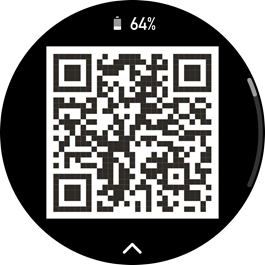
Use your phone to scan the following QR code, and download and install the Zepp app. For a better user experience, update the app to the latest version as prompted.
Note: Your mobile phone must run on Android 8.0 or iOS 17.0 or higher.
Initial pairing:
When the watch is started for the first time, the QR code used for pairing displays on the screen.
Open the Zepp App on your phone, log in to the app, and scan the QR code on the watch to pair your phone with the watch.
Pairing with a new phone:
- Open the Zepp app on your old phone and synchronize data with the watch.
- On the old mobile phone, go to Device > Amazfit Balance 3 page and tap the Unpair button at the bottom to unpair. If it is an iPhone, after unbinding in the Zepp app, you need to unpair the phone and watch. Go to Settings > Bluetooth, find the Bluetooth name corresponding to the watch, and tap the button on the far right of the Bluetooth name. After entering the page, tap Ignore This Device.
- Restore the factory settings of the watch, and then pair the watch with your new phone as described in the initial pairing procedure.
Updating Watch System
Keep the watch connected to your phone, open the Zepp app, and go to Device > Amazfit Balance 3 > General > Update to view or update the system of your watch.
We recommend that you tap Update Immediately when your watch receives a system update message.
Wearing
- Wear the watch strap not too tight or too loose, and leave enough space for the skin to breathe. This makes you feel comfortable and allows the sensor to function.
- When measuring blood oxygen, wear the watch correctly. Avoid wearing the watch on the wrist joint, keep your arm flat, maintain comfortable (appropriately tight) fitting between the watch and the wrist skin, and keep your arm still throughout the measurement process. When affected by external factors (arm sag, arm sway, arm hair, tattoo, etc.), the measurement result may be inaccurate or the measurement may fail with no output.
- We recommend that you tighten the watch strap during workout and loosen it afterwards.
Basic Operations
Gestures and button operations on the watch face
|
Operation
|
Corresponding Result
| ||
|
Screen
|
Button
|
Digital Crown
| |
|
Swipe from top to bottom
|
Press
the UP button
|
Scroll down the digital crown
|
Access the entry to the Notification Center and Control Center
|
|
Swipe from bottom to top
|
Press the DOWN button
|
Scroll up the digital crown
|
Access Shortcut Cards
|
|
Swipe from left to right
|
press the BACK button
|
/
|
Access the Workout list
|
|
Swipe from right to left
|
press the Digital Crown
|
/
|
Access the App List
|
On the watch face, the operations of pressing the SEL button or pressing the BACK button can both be changed in Settings > Preferences > Shortcut Buttons.
Commonly used gestures and button operations
|
Operation
|
Corresponding Result
|
|
Tap the screen
|
Uses a feature, selects the current item, or proceeds with the next step
|
|
Press and hold the watch face
|
Activates watch face selection and watch face settings
|
|
Cover the screen
|
Turns off the screen
|
|
Swipe from left to right
|
On most sub-level pages, returns to the upper-level page
|
|
Swipe up or down on the screen
|
Scrolls or switches pages
|
|
Rotate the digital crown
|
Scrolls or switches pages
|
|
Press
the digital crown
|
Uses a feature, selects the current item, or proceeds with the next step
|
|
Press the UP / DOWN button
|
Scrolls or switches pages
|
|
Press and hold the UP button for 2 seconds
|
Turn on / off LED flashlight
|
|
Press the BACK button
|
On most sub-level pages, returns to the upper-level page
|
|
Press and hold the BACK button for five seconds or longer
|
Powers on, accesses the restart page, and performs force restart
|
Control center
Swipe down on the watch face or press the UP button, then swipe down again or press UP again to access the Control Center, where you can access system controls of the watch.
Supported features:
- Default display: Flashlight, DND, Sleep mode, Theater mode, Calendar, Volume,Battery, Brightness, Find Phone,SOS,Alarm,Lock Screen,Settings, Bluetooth, Wi-Fi,Night Display, Eject Water, Always-on mode
- Can be added: Screen Always Lit, Buzzer Intensity, Barometer, Compass, Timer, Stopwatch, Headphone, Text Size
Swipe to the top of the Control Center and tap Edit to personalize your layout. You can add up to 24 controls.
Find the phone
- Keep the watch connected to your phone.
- On the watch face page, swipe down to go to the control center, and tap Find My Phone
Your phone will vibrate. Tap the ring button, and your phone will ring.
- In the app list, tap Find My Phone, and your phone will vibrate. Tap the ring button, and your phone will ring.
Find the watch
Keep the watch connected to your phone, open the Zepp app, go to Device > Amazfit Balance 3, and tap Find Device. Then, your watch will vibrate and ring. (The default setting is to vibrate only, and the alert tone needs to be set manually: Go to Watch Settings > Sound & Vibration > Ring for Alert to turn on the switch.)
Watch Face
Change watch faces
- After waking up the watch, long press the watch face to enter the watch face selection screen.
- Swipe left or right on the screen to preview watch faces available on the watch, including built-in watch faces and synchronized online watch faces.
- Tap the desired watch face to replace the current watch face.
Add watch faces
In addition to the built-in watch faces, you can choose online watch faces as desired from the watch face store in the Zepp app and synchronize them to the watch. You can also use a photo you took using your phone or use an image in the album as a custom background watch face.
Add online watch faces :
- Keep the watch connected to your phone, open the Zepp app, and go to Device > Amazfit Balance 3 > Watch Faces.
- Select one or more watch faces, and then synchronize them to the watch to give yourself multiple options.
Add customized watch faces:
Keep the watch connected to your phone, open the Zepp app, go to Device > Amazfit Balance 3 > Watch Faces > Photo Watch Face and tap your preferred style to change background by selecting a photo from your phone’s albums or taking a photo with your phone's camera.
Delete watch faces
When the storage space on the watch is almost full, you will need to delete some of the watch faces to make room for new ones (retain at least one watch face).
- After waking up the watch, long press the watch face to enter the watch face selection screen.
- Swipe left or right on the screen to preview watch faces available on the watch, including built-in watch faces, synchronized online watch faces, and customized watch faces.
- Swipe up on the screen. For watch faces with a
button, you can tap the button to delete the watch face.
Watch face compilations
Some watch faces support editing compilations. With compilations, you can view steps, calories, weather, and other information, and edit the information as needed.
Edit watch face compilations:
- After waking up the watch, press and hold the watch face to enter the watch face selection page, where you can choose other watch faces or edit the compilations.
- Swipe left or right on the screen to preview the watch faces currently available. The Edit button

is displayed at the bottom of a watch face that supports compilations. Tap the button to go to the page for editing the compilations of this watch face.
- Select the compilation to edit. Tap a compilation, or swipe up or down on the screen to switch between compilations.
- After editing, press the upper right button to complete editing and enable the watch face.
Always On Display
If this feature is enabled, the screen still displays time and some information of the watch face in standby mode, which greatly reduces the battery life.
Set Always On Display:
- After you wake up your watch, press the BACK button to access the app list. Then, go to Settings > Display > Always On Display.
- Select the screen style and enable status for Always On Display.
State points
The state point is displayed on the top of the watch face to indicate the functions currently enabled on the watch, such as the Theater Mode turned on in the watch or the Countdown app running in the background.
The supported display states are:
- New notification
- Low battery
- Battery saver mode
- DND mode
- Sleep mode
- Theater mode
- Stopwatch (tap the state point to go to the app)
- Countdown (tap the state point to go to the app)
- Music playing (tap the state point to go to the app)
- In workouts (tap the state point to go to the app)
- Charging
Notifications and Calls
Notifications
The watch can display various notifications and reminders generated by the system and apps, and it can also receive and show notifications from phone. On the watch face, swipe down and tap the Notification card, or press the SEL button to open the Notification Center and view notifications.
Delete all notifications
There is a Delete All button at the bottom of the Notification Center list. Tap it to clear all notifications. After the watch restarts, the notifications will be cleared automatically.
Delete a single notification When a notification arrives, you can delete it using the Delete button at the bottom of the notification. You can also swipe left on a notification in the Notification Center list to delete it.
Turn off notifications
You can enable or disable notifications on the watch at Settings > Notifications. When notifications are turned off, the watch will no longer display any notifications or alerts, and the Notification Center entry will be hidden. However, alarms and low-battery alerts will still work. In addition, the watch allows you to independently turn on or off notifications from your phone and from individual watch apps. For example, if you go to Settings > Notifications > Calendar on the watch and turn off Allow notifications, calendar-related reminders will no longer pop up.
Silence notifications during workouts or when off-wrist
You can also customize how each app's notifications behave when the watch is off-wrist or during workouts. For example, on the watch go to Settings > Notifications > Calendar > Silence Alerts, and turn "In Workouts" On. After that, calendar-related reminders will no longer pop up while you are working out.
Phone Notifications
When the watch is connected to your phone properly, you can receive phone notifications on the watch.
Setting method:
Keep the watch connected with your phone, open the Zepp App, go to Profile > Amazfit Balance 3 > Notifications > App Notifications. At the bottom of the page, turn on Receive notifications from “Phone apps”, and enable the apps you want in the list below.
Note:
To enable this feature on an Android phone, you need to add the Zepp App to the allowlist or auto-run list in the phone's background so that the app always runs in the background. If the Zepp App is terminated by the phone's background process, the watch will be disconnected from your phone, and you can not receive app notifications on the watch.
For iOS users, right after the watch is activated, only a limited number of apps are available for notification settings. As you receive notifications from more apps on your phone, more apps will appear on the App Notifications page.
Bluetooth calling
- Once this feature is enabled, pair the watch with your phone via Bluetooth and maintain the connection to receive calls on the watch.
- While the watch and your phone are connected via Bluetooth, you can also make Bluetooth calls on the watch through the Phone app.
Bluetooth calling setup methods:
Method one: Start the Zepp app, go to Device > Amazfit Balance 3 > Device App Settings > Phone, enable Bluetooth calls.
Method two: On your phone, go to Settings > Bluetooth to pair the watch with your phone:
- On your phone, go to Settings > Bluetooth, and enable the Bluetooth to make the phone discoverable. On the watch, go to the app list, tap Settings > Network & Connections > Bluetooth, and ensure the Bluetooth is enabled.
- Find the watch in the search results for available devices on your phone, and tap to pair the devices.
Incoming Call Alerts
To enable this feature, open the Zepp app, and go to Device > Amazfit Balance 3 > App Settings > Phone > Incoming call. Once the feature is enabled, and while the watch and phone are connected, the watch will display a prompt when the phone receives a call, and you can ignore or hang up the call on the watch.
Morning Updates
After enabling the Morning Updates feature, the device will send a short report every morning when you wake up, so that you can quickly browse information such as today's weather conditions, sports health status, and personal affairs, and help you fully prepare to start a new day.
You can disable the Morning Updates function in Device > Settings > Notifications > Morning Updates; you can also adjust the content and display order of Morning Updates.
The above settings can also be set by opening the Zepp App > Profile > Amazfit Balance 3 > Notifications > Morning Updates.
Shortcuts
Shortcut Cards
Swipe up on the watch face to go to the Shortcut Cards page, where you can easily use and view various features and information:
- You can add frequently used cards to this page for quick access, such as recent calendar events, the next alarm, or recent heart-rate data.
- You can also swipe to the bottom of the Shortcut Cards page and tap Edit, or open Zepp App > Profile > Amazfit Balance 3 > Shortcut Cards to set which cards are shown and adjust their order.
Press buttons for quick start-up
You can go to Watch > Settings > Preferences >Shortcut Buttons and select the app to be quickly launched, and then you can quickly open the previously set app by operating the corresponding button.
Triggering methods:
- Long press SEL Button
- Press the SEL Button
- Long press UP Button
- Long press Down Button
- Double Press BACK Button
- Press the BACK button
Workouts
Workout modes
The watch supports over 180 workout modes , including running & walking, cycling, swimming, outdoor sports, indoor sports, dance, combat sports, ball sports, water sports, winter sports, leisure sports, board & card games, diving, and others.
Workout list
- Select Workouts in the watch App list or press the upper right button on the watch face (if quick start-up is set for workouts) to go to the workout list.
- Select the workout to start in the workout list.
- Select More Workouts to view all workout modes and start a workout.
- Select Workout Settings to adjust sports recognition, pause button settings, GPS settings, etc.
- Tap

to edit the workout list, where you can add, delete, and sort workouts.
Choose a workout
In the workout list, swipe up or down on the screen or rotate the digital crown to select the workout to start.
Start a workout
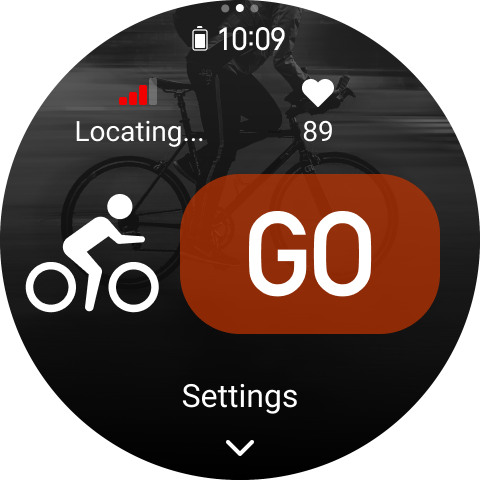
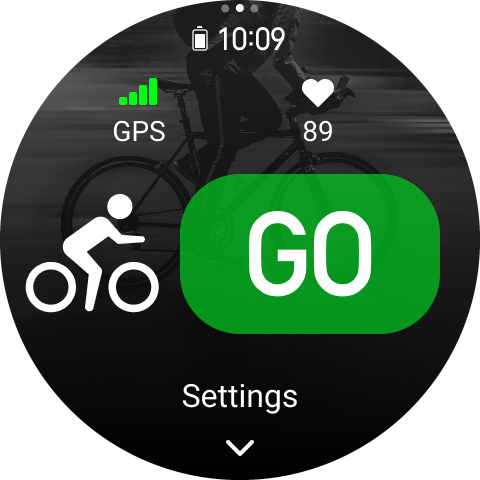
After entering the workout preparation page, for the workouts that require positioning, the device will automatically search for a GPS signal. The red status bar indicates that the watch is searching for a signal, and it will turn green once the signal is found. We recommend that you tap the workout icon to enter the workout after a successful GPS positioning, which can improve the accuracy of the workout data calculation.
For workouts that do not require positioning, you can directly tap the green status bar on the workout preparation page to start the workout.
Workout operations
Turn pages during a workout
During a workout, you can either swipe up or down on the screen, rotate the digital crown, or click the UP/DOWN buttons to turn pages. Swipe left or right to turn the pages left and right. On the left side of the workout data page, you can pause or end the workout. On the right side of the workout data page, you can control music playback on the watch app or the mobile phone.
Button definitions during workouts:
- Click SELECT button : Pause/resume workout
- Click BACK button during workout : Mark a segment/lap
- Click UP/DOWN buttons : Turn pages
- Press and hold UP button : Turn on/off flashlight
- Click BACK button when paused : Switch between action page and data page
- Press and hold BACK button : Return to watch face and run workout in background
Workout screen lock status
After auto screen lock is enabled, the screen will turn off during workouts/in AOD mode/when the screen times out, and the status bar will display the

icon.
In this state, the touch screen cannot be operated. You need to press the button to unlock the touch screen before you perform any operation, or you can directly press the button to perform workout operations.
For swimming, the touch screen will be continuously disabled during the workout, and can only be used after you pause or finish the workout by pressing the button.
For diving activities, the touchscreen stays disabled for the entire session and becomes usable again only after you end the workout.
Workout operations page
The left side of the workout data page displays the workout control panel, where you can pause, end, and perform other workout-related actions.
- Pause/Resume : Tap to enter the workout pause/resume page.
- End : Tap to end the current workout and save the data.
- Workout Assistant : Tap to modify some of the workout assistant settings (can be modified on the page when pausing the workout).
- Resume later : Press to save the current workout and return to the watch face. Enter the workout app again to return to the workout pause page.
- More : Press to modify some of the settings.
Workout settings
On the workout preparation page, you can swipe up to go to the workout settings page to set the current workout mode. The related parameters vary depending on the workout mode.
Workout assistant
The workout assistant provides auxiliary tools for your workout, including the workout goals, workout alerts, auto laps, auto pause, cadence assistant, and virtual pacer. Auxiliary features provided by the workout assistant vary depending on workouts.
Workout goals
You can set workout goals, such as the duration, distance, calories, and effect in Workout Goal. The watch displays the current goal progress in real time during workouts. A message displays upon you achieve the preset workout goal. Workout goals vary depending on workouts.
Workout alerts
In this setting, you can set various reminders according to your needs, such as Distance Reminder, Heart Rate Reminder, etc. Workout alerts vary according to the workout.
Distance reminder
The watch vibrates and displays the duration that you use for each full kilometer/mile during the workout.
Go to Workout Mode > Settings > Assistant > Workout Alerts > Distance, set a target distance, and enable this feature.
Safe heart rate reminder
During a workout, if the watch detects that your heart rate exceeds the safe heart rate value you have set, it will vibrate and display a message on the screen. In this case, you need to slow down or stop.
Go to Workout Mode > Settings > Assistant > Workout Alerts > Safe Heart Rate, set a safe heart rate value, and enable the feature.
Heart rate range alert
During a workout, if the watch detects that your heart rate does not fall within the configured heart rate range, it will vibrate and display a message on the screen. In this case, you need to speed up or slow down to ensure that your heart rate is within the configured range.
To set the feature, go to Workout Mode > Settings > Assistant > Workout Alerts > Heart Rate Zone, set a heart rate zone, and enable this feature.
Pace alert
You can set a maximum/minimum pace value. If your pace exceeds the preset value, the watch will vibrate and display a message.
Go to Workout Mode > Settings > Assistant > Workout Alerts > Fastest/Slowest Pace, set a pace, and enable or disable this feature.
Additionally, the watch also supports alerts for the following: Fastest Pace, trips, speed, stroke frequency, cadence, time, calorie, drinking water, energy intake, return, rest period, altitude and target height.
Weighted load
Certain workout modes support the Load/Weighted feature: Outdoor Run, Treadmill, Walking, Hiking, Trail Run, Trekking, Indoor Walking, Race Walking, Dog Walking, Weighted Hiking, Mountain Climbing, Orienteering, Track Running, Ultramarathon
Single session effect: The setting resets after ending the workout or returning to the workout list.
Prepare Workout page: Load/Weighted takes effect after exiting the preparation page and does not auto-reset.
Value saving: Once confirmed, the system remembers the weight for next use of the same workout mode.
Setup: Workout Mode > Workout Assistant > Load/Weighted > On
Initial value: 5 kg
Adjustable range: 0.5–50.0 kg (0.5–99.5 lb)
Auto lap
This feature is available for some workouts. You can set the auto lap distance in the workout settings, and the watch will start an auto lap and remind you each time you reach the set distance during a workout. Also, when the screen is on and unlocked during a workout, you can press the BACK button of the watch to manually start a lap.
The watch also records the workout details of each lap for both manual laps and auto laps. After the workout ends, you can view details of different laps.
Go to Workout Mode > Settings >Assistant > Auto Lap, and set the auto lap distance. Manual laps do not require any setting.
Auto pause
Enable or disable Auto pause. After the function is enabled, the workout will be automatically paused when the workout speed is too low. When the speed increases to a certain threshold, the workout can be resumed. You can also resume the working during the pause. The auto pause threshold can be customized for some workouts.
Go to Workout Mode > Settings > Assistant > Auto Pause.
Cadence assistant
You can set the cadence per minute and the reminder frequency. During a workout, the watch can sound or vibrate according to the set cadence, so that you can control your cadence.
Go to Workout Mode > Settings > Assistant > Cadence Assistant, set the cadence per minute and the reminder frequency, and enable this feature.
Virtual pacer
After you set a pace value of the virtual pacer, the current pace, the distance leading/lagging the virtual pacer, and your position in relation to the virtual pacer can be displayed during workouts.
Go to Outdoor Running/Treadmill > Settings > Assistant > Virtual Pacer, set the pace of the virtual pacer, and enable this feature.
Smart Start
After enabling this feature, on the exercise preparation page, when the positioning is successful and it is detected that you are in workout state, it will intelligently and automatically enter the workout and record it. With this feature, you can avoid data loss caused by forgetting to click to start workout while waiting for the positioning process.
Setting steps: Specific workout mode (such as Outdoor running) > Assistant > Start intelligently> Enable
Safety Light
Use the watch’s LED flashlight as a safety light during night runs or cycling to improve visibility and alert vehicles or pedestrians.
To enable:
- Open a supported workout > Settings > Workout Assistant > Safety Light
- Set Status to On
Training
Training Template
Some sports can use the training template function in workouts. This function needs to be edited in Zepp app > Workout tab > More > Training > Training Template. You can edit the training template of a certain workout mode, and set the training steps, step types, reminder content, number of cycle groups, etc., and synchronize to the watch.
After syncing to the training template of a certain sport on the watch, open the watch side > Workout > Training > Training template, select the training template to be performed, and click GO to start using the training template immediately.
When using the watch, it will follow the edited template, and the content of this stage will automatically jump to the next stage.
Interval training
This feature is available for some workouts. On the watch, you can directly edit the training stage, rest stage and loops of interval training. When you use interval training, it will be performed according to settings you did. After this stage is completed, the training automatically goes to the next stage.
You can edit the training stages and rest stages by distance, time, and loops as well as in a customized way. The items for editing vary according to the workout.
Navigation
Import track to watch
Track files in GPX, TCX, FIT, KML and other formats can be uploaded to the Zepp App, and then sent to the device through the App, and the route can be viewed on the device and used for navigation.
Setup steps: Track file > open via Zepp app > Save track > Send to watch
Start Navigation
Access My Routes or My Locations to select a target route or location. Once enabled, your watch provides turn-by-turn guidance during the workout.
To start navigation:
- Open Workout > Navigation > My Routes / My Locations
- Select a route or location
- Tap Start Navigation
Save current location
In workout modes that support navigation, the coordinates of the current location can be saved and used in navigation.
Setting steps: before/during workout > Navigation > Save current position
Navigation settings
Start Point Direction Set the navigation view when starting a workout. Path: Navigation > Navigation Settings > Start Point Direction > Front Course / Back Course
Navigation View Set the map orientation during navigation. Path: Navigation > Navigation Settings > Navigation View > Advance Up / North Up
Navigation Reminder Enable alerts to notify you of turns, course deviations, waypoints, or slopes along the route. Path: Workout > Navigation > Navigation Settings > Navigation Reminder > Course Deviation / Turn / Waypoint / Slope Alert
Route Colors Display the imported route and your completed route in different colors during workouts. Path: Navigation > Navigation Settings > Route Colors > Imported Route / Traveled Route
Altitude overview
When using Track Navigation, the altitude overview page of the route will be automatically parsed and generated during the workout, and the overall altitude change of the route and the current real-time position can be checked at any time during the workout.
Slope Analysis
When using Track Navigation, when the altitude of the current route changes greatly, it will automatically analyze and generate slope information, and mark the positional relationship between the current position and the slope.
Remarks: Not all track routes can generate slope segment information, only track routes with large altitude fluctuations can generate slope segment information.
Return to the starting point
In the workout, you can return to the starting point through navigation. There are two ways of returning: returning according to straight-line and returning according to the original route (Backtrack). This feature is only applicable to some outdoor activities where GPS tracks are generated during workout.
Straight line return
When this feature is enabled, the track page of the device will connect a straight line based on your current position and the starting point of this workout, and you can return to the starting point by following the guide.
Setting steps: Workout > Pause > Navigation > Return to starting point > Straight line return
Note: The straight-line return route is drawn purely based on GPS location points, and it is impossible to judge impassable landform features such as mountains, rivers, canyons, and buildings. Please navigate according to the actual situation.
Backtrack
When this function is enabled, the track page of the device will be navigated according to the route track you have passed, and you can return to the starting point of this exercise by pressing this track navigation.
Setting steps: Workout > Pause > Navigation > Return to starting point > Backtracking.
More
Edit data items
You can edit data items during workouts, including editing the workout data and charts, deleting, adding or sorting data pages.
Optional values of the data page format include 1, 2, 3, 4, 5 or 6 data items per page.
More than 150 workout data items are supported (specific supported data items vary by workouts).
More than 8 types of real-time charts are supported, including pace, elevation, and more.
Up to 4 pages of workout extensions can be added.
Up to 10 pages of data/workout charts can be added.
Equivalent Pace / Average Equivalent Pace
View your Equivalent Pace or Average Equivalent Pace during outdoor runs.
To enable:
- Open Outdoor Run or Trail Run
- Go to Workout Settings > More > Data Pages > Pace > Pace Class
- Select Equivalent Pace or Average Equivalent Pace
3D data mode
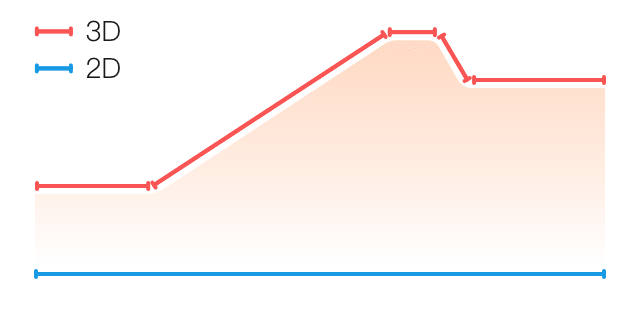
You can enable or disable the feature for some workouts in workout settings. If the feature is enabled, the watch calculates distance using 3D data, as shown in the preceding figure. As shown in the figure, after 3D distance is enabled, the slope distance of the route is calculated. Factors such as the altitude and slope changes are considered, so that the calculated distance matches the actual distance of the route. When 3D distance is not enabled, the projection distance is calculated based on the route traversed, namely the 2D distance shown in the figure.
Wrist side
For some workouts, for example, tennis, you need to wear the device on the hand that holds the racket, and workout data is more accurate when you wear the watch on the preset side.
If the right hand is used to hold the racket, you need to wear the watch on that hand.
Setup steps: Tennis/Rowing machine > Settings > More > Wrist side
Swimming pool length
Refers to the length of lanes in your swimming pool. The watch calculates swimming data based on the lane length you set.
Set the corresponding lane length for each pool so that the watch can accurately evaluate your swimming data.
Setting steps: Pool Swimming > Settings > More > Lane Length
Recalibrate
In the treadmill workout mode, you need to calibrate according to the actual distance after each exercise. Calibration with a distance greater than 0.5 km allows the watch to learn your running habits. After multiple calibrations, the watch will record the distance more accurately.
If there is still a significant difference from the actual distance after multiple calibrations, you can recalibrate it.
Setup steps: Treadmill > Settings > More > Recalibrate
Down swing direction
For some workouts, for example, golf, you need to wear the device on the hand in the direction of down swing direction, so that workout data is more accurate.
If the down swing direction is to the left (i.e. hitting the ball from right to left), the watch needs to be worn on the left hand.
Go to Golf Swing > Settings > More > Down Swing Direction for settings.
Track length & track selection
In the sports Track run workout, it is necessary to set the track length and track lane, which can make the workout data more accurate.
Go to Sports Track run workout > Settings > More > Track run Settings > Runaway distance & Track Selection for settings.
Real-time Performance
Real-time Performance assesses physical condition and performance during exercise. The larger the value, the better the current state, and vice versa. It takes effect in Outdoor Running and Track Run modes. The Real-time Performance reminder will pop up during exercise.
- Reminder timing: The device will send out reminders when the Real-time Performance data is generated for the first time and when the range changes.
- Reminder condition: Real-time Performance data will only be generated after a single workout reaches the VO2 Max generation condition.
A Real-time Performance chart will be displayed in the workout record. You can manually turn off this feature, path: Outdoor running/Track run > Settings > More > Real-time Performance.
Real-time Performance ranges and their meanings:
Excellent: ≥ +10%
Very good: +5 ~ +9%
Good: -5 ~ +4%
Fatigued: -10 ~ -4%
Exhausted: < -10%
Special workout modes - Swimming
Workout terms
Trip: Refers to the lane length in pool swimming mode.
Stroke: Refers to a complete stroke motion while you are wearing the watch.
Stroke rate: Refers to the number of strokes per minute.
DPS: Refers to the distance of a complete stroke.
SWOLF: It is an important indicator of swimming scores, which comprehensively evaluates your swimming speed. SWOLF in pool swimming mode = Duration of a single lap (in seconds) + Number of strokes in a single lap. In open-water swimming mode, SWOLF is calculated using a lap distance of 100 meters. A smaller SWOLF score indicates higher swimming efficiency.
Stroke Recognition
The watch recognizes strokes in swimming modes and displays the main stroke you use.
|
Stroke Type
|
Definition
|
|
Freestyle
|
Freestyle stroke
|
|
Breaststroke
|
Breaststroke
|
|
Backstroke
|
Backstroke
|
|
Butterfly
|
Butterfly
|
|
Medley
|
More than one stroke is used when swimming, with each stroke in a similar proportion
|
Touch screen during swimming
To protect the touch screen from unintentional touches and water interference, the watch automatically disables the touch screen feature after you start swimming. In this case, you can control the workout with the watch buttons. After the workout ends, the watch will re-enable the touch screen function.
Special workout modes - Diving
Usage
This device supports both recreational scuba diving and freediving modes and features automatic dive detection. When enabled, the device will automatically recognize the start and end of a dive under the following conditions:
- Dive start detection: Triggered when the dive depth reaches 1.2 m / 3.9 ft
- Dive end detection: Triggered when ascending and the depth returns to 0.9 m / 3.0 ft
The detection thresholds are preset by the system and cannot be customized at this time.
Outdoor Freediving
- You can set the water type.
Setting procedure: Outdoor Freediving > Settings > More > Water Type
In outdoor freediving workouts, the default water type is seawater.
- You can set the dive time reminder, dive depth reminder and surface interval reminder.
Setting steps: Outdoor Freediving > Settings > More > Reminders, and find the corresponding settings
- To set the compass target direction, click the Lock orientation button on the screen to lock the current dial 12 o'clock direction. Press UP/DOWN button on the dive page, the compass page will be displayed on the screen and the angular difference between the current direction and the set direction will be shown.
Setting steps: Outdoor Freediving > Settings > More > Compass
- Automatic Detection
The watch can recognize when you start a dive and when you come out of the water, and it will automatically switch between underwater and surface real-time data pages.
You can turn off automatic detection and click the BACK key to switch between the underwater and above water pages. When entering the water, you need to press the BACK button, then the number of dives will +1 and the page will show the dive real-time data; when reaching the surface, you also need to press the BACK button, then the page will show the surface real-time data.
Setting procedure: Outdoor Freediving > Settings > More > Auto Detection
Indoor Freediving
- You can set the water type.
Setting procedure: Indoor Freediving > Settings > More > Water Type
In indoor freediving workouts, the default water type is freshwater.
- You can set the dive time reminder, dive depth reminder and surface interval reminder.
Setting steps: Indoor Freediving > Settings > More > Reminders Settings, and find the corresponding settings
- Automatic Detection
The watch can recognize when you start a dive and when you come out of the water, and it will automatically switch between underwater and surface real-time data pages.
You can turn off automatic detection and click the BACK key to switch between the underwater and above water pages. When entering the water, you need to press the BACK button, then the number of dives will +1 and the page will show the dive real-time data; when reaching the surface, you also need to press the BACK button, then the page will show the surface real-time data.
Setting procedure: Indoor Freediving > Settings > More > Auto Detection
Recreational Diving
- Gas Type Configuration You can configure the type of breathing gas. Path: Recreational Diving > Setting > Dive Setting > Gas The default gas type is Air.
- Water Type Configuration You can set the water density based on your diving environment. Path: Recreational Diving > Setting > Dive Setting > Water Type The default setting is Seawater.
- Safety Stop Settings You can configure a safety stop to enhance diving safety. Path: Recreational Diving > Setting > Dive Setting > Safety Stop The default safety stop is 3 minutes @ 5 meters.
- Custom Alerts You can set alerts for dive time, dive depth, and oxygen partial pressure (PPO₂). Path: Recreational Diving > Setting > Alerts Select the desired alert type to configure.
- Auto-Detection The watch can automatically detect the start and end of a dive. Path: Recreational Diving > Setting > Dive Setting > Auto Start/End You can adjust the start depth and end time according to your preferences.
Spearfishing
- You can set the water type.
Setting procedure: Spearfishing > Settings > More > Water Type
In spearfishing workouts, the default water type is seawater.
- You can set the dive time reminder, dive depth reminder and surface interval reminder.
Setting steps: Spearfishing > Settings > More > Reminders Settings, and find the corresponding settings
- To set the compass target direction, click the Lock orientation button on the screen to lock the current dial 12 o'clock direction. Press UP/DOWN button on the dive page, the compass page will be displayed on the screen and the angular difference between the current direction and the set direction will be shown.
Setting steps: Spearfishing > Settings > More > Compass
- Automatic Detection
The watch can recognize when you start a dive and when you come out of the water, and it will automatically switch between underwater and surface real-time data pages.
You can turn off automatic detection and click the BACK key to switch between the underwater and above water pages. When entering the water, you need to press the BACK button, then the number of dives will +1 and the page will show the dive real-time data; when reaching the surface, you also need to press the BACK button, then the page will show the surface real-time data.
Setting procedure: Spearfishing > Settings > More > Auto Detection
- To record the number of fish caught, long press UP on the surface page to add the number of fish during the latest dive.
Touch Screen During Diving
To protect the touch screen from unintentional touches and water interference, the watch automatically disables the touch screen feature after you start diving. In this case, you can control the workout with the watch buttons. After the workout ends, the watch will re-enable the touch screen function.
- Before using the diving function in high-altitude locations, please perform altitude calibration in the air or wait for the device to automatically update atmospheric pressure. This ensures the correct reference pressure is recorded, allowing accurate dive start/end detection and reliable depth data.
- Failure to calibrate may lead to depth inaccuracies or abnormal dive logs.
Inspection and Maintenance Recommendations
- Rinse the device thoroughly with fresh water after each dive, especially after exposure to seawater or chlorinated pools, to prevent corrosion.
- Wipe dry with a soft cloth to avoid moisture retention in button gaps, sensors, or charging ports.
- Avoid impacts or strong vibrations; take extra care with the screen and buttons.
- Note that waterproof performance may degrade over time with regular use. Periodic checks and recalibration are recommended to maintain accuracy and reliability.
Storage Recommendations
- Store the device in a cool, dry place, away from direct sunlight, heat, or humidity.
- If unused for an extended period, maintain the battery level of between 40–60%, and recharge every 1–2 months.
- Do not seal the device in a container while still wet, as this may lead to corrosion or mold.
- Keep away from strong magnetic fields, solvents, perfumes, or other chemicals to avoid damage to internal components.
- Use the original packaging or a protective case for storage, and avoid contact with sharp objects to prevent scratches or damage.
Dive Safety
- Under normal usage conditions, this device has a maximum diving display depth of 45 meters and is intended only for recreational diving and freediving purposes. It must not be used for technical diving, cave diving, mixed-gas diving, or other high-risk scenarios.
- The diving features of this device are intended for use by certified divers only. Please ensure you have received professional training and understand how to operate the device before use. General users conducting breath-hold training, breath-hold testing, or engaging in any diving activities must be accompanied by a coach, an experienced dive buddy, or a professional. The device should not be shared among multiple users, as mixed data may pose potential risks.
- Diving is a high-risk activity. Before beginning, confirm that you are in suitable health to participate. If in doubt, consult a medical professional. Always check the device status before each dive and perform regular maintenance. Do not use the device if any malfunction or damage is found.
- Avoid rapid ascents. Even if a decompression stop is not required, a safety stop of 3 minutes at a depth of 3–5 meters is strongly recommended.
- To reduce the risk of decompression sickness, ensure adequate surface interval after diving, especially after recreational dives. Strictly follow the recommended no-fly time and avoid flying before the interval has elapsed. For detailed pre-flight recommendations, please refer to guidelines provided by recognized diving safety organizations.
- Note that all electronic devices may malfunction. Depth, dive time, ascent rate, and other data provided by the device are for reference only and may be affected by environmental conditions or how the device is used. Always dive with a professional dive computer or other backup device. Do not rely on a single device when making critical decisions, such as planning decompression stops or determining no-fly times.
- By using this device, you acknowledge and accept that it serves as an auxiliary tool and does not guarantee absolute accuracy or suitability of data, nor can it eliminate the inherent risks associated with diving. Always prioritize safety, make reasonable dive plans, and take responsibility for your personal safety.
Special workout modes - Golf
Download
To use the golf feature, you must download the corresponding course map in advance.
Go to Zepp App > Device > Amazfit Balance 3 > Golf > Find Course.
- Search based on input location and search radius
- Select one or more golf courses (multi-selection supported)
- Tap Download, and the watch will automatically begin downloading the selected course maps
Manage
On your phone, you can manage downloaded golf course maps via: Zepp App > Device > Amazfit Balance 3 > Golf
- Swipe right to delete the downloaded course record from your phone
- Tap a specific course to view its map, address, phone number, and other details
- Tap a course again to re-transfer it to the watch
On the watch, you can delete downloaded golf maps via: Watch Settings > Golf
Use
Once the course map is downloaded, the golf feature on the watch can be accessed in two ways:
- From the watch face, press the BACK button to open the App List > tap Golf to start
- From the watch face, press the digital crown to open the Workout List > tap Golf to start
After launching the Golf mode, select a specific course and complete the initial setup, including handedness, units, tee distance, scoring method, and tee box selection, before starting the activity.
During a golf session, the following features are supported:
- Scroll the digital crown up/down to switch between: course map, data-only panel, last swing analysis, and score input
- In the course map view, swipe left/right to view key course hazards and green information
- In the course map view, tap to zoom in for details, measure distances between any two points, and set markers
- Change holes and edit the scorecard anytime during the session
After the round ends, the watch will display a summary including score, holes played, duration, number of putts, total distance, and step count. All data will automatically sync to the Zepp App under Workout Records.
Special workout modes - Ultramarathon
How to use:
You can configure rest mode settings before the workout.
- Setting steps: Ultramarathon > Workout Assistant > Rest Settings
Workout GPS positioning
If you select outdoor workouts, wait until GPS positioning is successful on the Workout preparation screen. Then, tap: green status bar to begin the workout. This allows the watch to record complete workout data and prevents data inaccuracy due to workout tracking loss.
Positioning guide:
- If you receive a prompt to update the AGPS after selecting a workout, start the Zepp app on your phone and connect it with the watch to update AGPS. Then, select a workout again. This operation reduces the time spent searching for a signal and avoids search failure.
- If, during the positioning process, the GPS signal icon continues to flicker, an open area can offer you faster positioning for a better GPS signal, as nearby buildings may block and weaken the signal, extending the positioning time and even causing positioning failure.
- After successful positioning, the red status bar will turn to green color. The GPS signal shows the current GPS signal strength.
AGPS is a kind of GPS satellite orbit information which helps the watch accelerate the GPS positioning process.
Auto workout identification
A total of 8 workout types can be identified, namely walking, indoor walking, outdoor running, treadmill, outdoor cycling, pool swimming, elliptical, and rowing machine.
Automatic workout identification is a process where the watch automatically determines the workout type and records a single workout after related workout characteristics are compiled with and your workout continues for a period.
You can set this in Settings > Workouts > Workout Detection.
Type: After you select a workout type, the automatic identification feature is enabled for the workout.
Sensitivity: Higher sensitivity indicates a shorter recognition time. Recognition time is prolonged if the sensitivity is low. Set as required.
* Continuous workout status monitoring will greatly reduce the battery life. When no workout is selected, the workout identification function is not enabled. If the watch detects an ongoing workout, some data cannot be synchronized with the app.
Voice broadcast during workout
The watch supports voice broadcast when exercise reminder, exercise segmentation, manual operation pause, continue exercise, and end exercise into exercise record during fitness. The announcement includes exercise data summary and operation reminder.
Go to Settings > Workout > Voice Broadcast > Workout to enable this feature.
Need to connect Bluetooth headphones/audio devices to play. Setting path: Watch > Settings > Bluetooth. For more information, please refer to the Bluetooth Settings section.
Workout History
When a workout ends, the workout record will automatically be saved to Workout History . If you end the workout when the workout time is too short, the watch will ask you whether to save it. Due to the limited storage space, it is recommended that you synchronize the workout data to the app soon after completing a workout; otherwise, the workout data may be overwritten.
Workout history on the watch
Workout history includes the workout data, workout trace (for workouts which support GPS), lap/set data, workout goal completion, and other information.
When a workout ends, the screen will immediately jump to the workout history details page, or you can view recent workout history details in the Activities app. The watch can save up to 100 recent workout records.
Personal Best
The best records from certain types of workouts will be saved, including longest distance, longest workout time, and so on.
Workout history on the app
Workout history on the app shows a wider range of workout data. Dynamic route and sharing features are also supported.
Path in the app: Zepp app > Workout page > Workout history
Physical indicators
The watch provides a variety of physical indicators for workouts. You can use evaluation scores as a reference for your workouts. These indicators can be viewed in workout records or the Workout Status app, including current training load, total recovery time, VO2max, and training effect.
You can find a detailed explanation of current training load, full recovery time, and VO2max in the Workout Status app.
Training Load (TE)
Training Effect (TE) is an indicator for measuring the effect of a workout on improving the aerobic capacity. When you work out while wearing the watch, the TE score starts from 0.0 and increases as the workout progresses. The TE score ranges from 0.0 to 5.0, and different score ranges indicate different effects. A higher TE score indicates a greater workout intensity. It signifies a higher body load, but a better TE. However, you should consider whether your body load is too high when the TE score reaches 5.0.
|
Aerobic TE Score
|
Effect on Improving Aerobic Capacity
|
|
0.0-0.9
|
This workout has no effect on improving aerobic capacity.
|
|
1.0-1.9
|
This workout helps improve endurance and is ideal for post-workout recovery training.
|
|
2.0-2.9
|
This workout helps maintain aerobic capacity.
|
|
3.0-3.9
|
This workout significantly helps improve aerobic capacity.
|
|
4.0-4.9
|
This workout remarkably improves heart-lung ability and aerobic capacity.
|
|
5.0
|
Post-workout recovery is required for non-athlete users.
|
|
Anaerobic TE Score
|
Effect on Improving Anaerobic Capacity
|
|
0.0-0.9
|
This workout has no effect on improving anaerobic capacity.
|
|
1.0-1.9
|
This workout has a slight effect on improving anaerobic capacity.
|
|
2.0-2.9
|
This workout helps maintain anaerobic capacity.
|
|
3.0-3.9
|
This workout significantly helps improve anaerobic capacity.
|
|
4.0-4.9
|
This workout has a significant effect on improving anaerobic capacity.
|
|
5.0
|
Post-workout recovery is required for non-athlete users.
|
The TE score is evaluated based on your profile, as well as your heart rate and speed during your workout. A low TE score does not indicate a problem during your workout, but instead signifies that the workout is too easy and has no significant effect on improving aerobic capacity (for example, a low TE score for 1-hour of jogging).
How is it obtained?
Once a workout for which heart rate data is monitored ends, the watch displays the TE score of the workout and provides related comments or suggestions. You can also review the TE score of each workout record in the future.
Workout status
Workout status includes training load, next hard session, and VO₂ Max. The device calculates these metrics based on your personal information and data generated during the workout. As you wear the device and data accumulates over time, we will gain a better insight into your physical and workout data, and the accuracy of evaluation gradually improves.
Maximum oxygen uptake (VO₂ Max)
VO₂ Max (unit: ml/kg/min) refers to the maximum amount of oxygen the body can take in and utilize during maximal-intensity exercise. It is a key indicator of aerobic capacity. A high VO₂ Max generally represents superior aerobic performance and is particularly important for endurance athletes.
VO₂ Max is highly individualized, with reference standards varying by gender and age. Devices assess your exercise capacity based on personal information, as well as heart rate and speed during physical activity, and this evaluation dynamically adjusts as your fitness level changes. It should be noted that everyone has an inherent upper limit for the VO₂ Max, which is determined by their physiological conditions.
Based on VO₂ Max scores, athletic ability is classified into the following seven levels: Very poor, Poor, Fair, Average, Good, Very good, Excellent.
VO₂ Max levels for males:
|
Age
|
Very Poor
|
Poor
|
Fair
|
Average
|
Good
|
Very good
|
Excellent
|
|
20-24
|
<32
|
32-37
|
38-43
|
44-50
|
51-56
|
57-62
|
>62
|
|
25-29
|
<31
|
31-35
|
36-42
|
43-48
|
49-53
|
54-59
|
>59
|
|
30-34
|
<29
|
29-34
|
35-40
|
41-45
|
46-51
|
52-56
|
>56
|
|
35-39
|
<28
|
28-32
|
33-38
|
39-43
|
44-48
|
49-54
|
>54
|
|
40-44
|
<26
|
26-31
|
32-35
|
36-41
|
42-46
|
47-51
|
>51
|
|
45-49
|
<25
|
25-29
|
30-34
|
35-39
|
40-43
|
44-48
|
>48
|
|
50-54
|
<24
|
24-27
|
28-32
|
33-36
|
37-41
|
42-46
|
>46
|
|
55-59
|
<22
|
22-26
|
27-30
|
31-34
|
35-39
|
40-43
|
>43
|
|
60-65
|
<21
|
21-24
|
25-28
|
29-32
|
33-36
|
37-40
|
>40
|
VO₂ Max levels for females:
|
Age
|
Very Poor
|
Poor
|
Fair
|
Average
|
Good
|
Very good
|
Excellent
|
|
20-24
|
<27
|
27-31
|
32-36
|
37-41
|
42-46
|
47-51
|
>51
|
|
25-29
|
<26
|
26-30
|
31-35
|
36-40
|
41-44
|
45-49
|
>49
|
|
30-34
|
<25
|
25-29
|
30-33
|
34-37
|
38-42
|
43-46
|
>46
|
|
35-39
|
<24
|
24-27
|
28-31
|
32-35
|
36-40
|
41-44
|
>44
|
|
40-44
|
<22
|
22-25
|
26-29
|
30-33
|
34-37
|
38-41
|
>41
|
|
45-49
|
<21
|
21-23
|
24-27
|
28-31
|
32-35
|
36-38
|
>38
|
|
50-54
|
<19
|
19-22
|
23-25
|
26-29
|
30-32
|
33-36
|
>36
|
|
55-59
|
<18
|
18-20
|
21-23
|
24-27
|
28-30
|
31-33
|
>33
|
|
60-65
|
<16
|
16-18
|
19-21
|
22-24
|
25-27
|
28-30
|
>30
|
How is it obtained?
1. Enter accurate personal information in the Zepp app;
2. Wear the device and start one of the following activities: Outdoor running, Track run, Ultramarathon, or Trail running;
3. During the activity, maintain a running speed continuously exceeding 6 km/h (10 min/km) or 3.7 mph (16 min/mile) for 10 minutes. Throughout this period, your heart rate must be consistently recorded and reach 75% of your maximum heart rate.
*When using the Amazfit Helio Strap / Amazfit Helio Ring, starting an Outdoor runnning session from the Zepp app supports VO₂ Max calculation. Please ensure that the Amazfit Helio Strap / Amazfit Helio Ring is listed as the first device in the device list, and that both the device and the phone remain connected throughout the activity; otherwise, the calculation result may be affected. Except for the Amazfit Helio Strap / Amazfit Helio Ring, starting an Outdoor running from the Zepp app using other devices does not support VO₂ Max calculation. To calculate VO₂ Max with other devices, please start the activity directly from the device.
How can I view it?
You can view the current VO₂ Max in the watch's workout status app. You can also view the VO₂ Max history and variation trends in the app.
Training load
The training load score is calculated based on your Excess Post-Exercise Oxygen Consumption (EPOC). A higher score indicates a longer workout time and a greater workout intensity. The training load score is calculated as your total training load over the past 7 days, which represents the burden brought to your body from the recent workouts.
There are three training load ranges: low, moderate, and high.
If the training load is low, it will not help much to improve your athletic ability. However, if the training load is relatively high or too high, you may feel too tired, meaning it is not conducive to effectively improving your ability and may also cause injury risks. If you want to continuously improve your athletic ability within a tolerance range, it is recommended that you keep the training load score within the moderate range.
The moderate range of the training load score depends on your recent and long-term workout data, and will become increasingly accurate as you use it.
How to obtain training load:
After the workout mode is enabled on the device, you can obtain the training load of the current workout once you reach the minimum training load level. The training load over the past 7 days can be viewed in the workout status application of the watch.
How to view the training load:
The training load can be viewed in the workout status application of the watch. You can view your historical training load and change trends in the app.
Next Hard Session
Next Hard Session estimates when your body may be ready for hard training after a workout. The estimate is based on your recent workout intensity and recovery status, helping you plan your next training session more appropriately.
Before your next hard session, the watch may also show when lighter activity may be better supported. This can help you stay active while allowing time for recovery.
Recovery supports muscle repair, energy replenishment, and nervous system reset. Giving your body enough time before harder training may help improve workout quality and reduce excess fatigue.
Activity Guidance
Note: Recovery estimates are for reference only and may vary based on recent activity, sleep, fitness level, and other factors.
Heart Rate After Workout
The device will automatically measure the Heart Rate after Workout within 3 minutes after the end of the workout. The results will be displayed in the heart rate chart section of the workout record on the Zepp app, which can be viewed by swiping horizontally.
If the next workout is started right after the previous one, the measurement of the Heart Rate after Workout of the previous workout will be terminated. Delayed termination of the workout after pausing may also affect the accuracy of the Heart Rate after Workout.
To ensure the timeliness and effectiveness of the Heart Rate after Workout data measurement, it is recommended to: 1. End the workout in a timely manner, 2. Wear the watch properly within 3 minutes after the end of the workout, 3. Wait at least 3 minutes after the end of the previous workout before starting the next one.
Zepp Coach
Zepp Coach will customize a training plan for you based on your workout history and exercise habits to help you develop exercise habits that will improve your athletic capacity and cardiorespiratory fitness while avoiding injuries.
Start a plan
Find Zepp App > Workout > Zepp Coach card, click Customize Plan, follow the guide to fill in your exercise situation in the past 1 to 2 months, and select the rest day and the start date to start the plan.
View the plan
After you have successfully set up your training plan on Zepp app, you can view your daily schedule in the Zepp Coach app on your device or in Zepp app > Home > Zepp Coach details page.
Set reminders
In the Zepp Coach app on your device, slide to the rightmost page to set a reminder for your training.
Execute the plan
You can start your workout by quickly launching the workout mode on the device > Zepp Coach app, or by selecting the workout mode on the Workout List. The workout records will be included in the training statistics of the day. Please wear your device during exercise so that you can sync your exercise log to Zepp App in time after exercise.
Modify and terminate the plan
In Zepp app > Zepp Coach > Detail page, you can modify the plan or terminate the plan by clicking the Settings button on the top right corner.
Map
Map download
- Open Zepp App > Device > Amazfit Balance 3 > Map
- Zoom and pan to select the area you want to download
- You can choose to download Base Map, Ski Map, and Contour Map
- click "Add to device download List"
- Confirm the download on your watch — the map will be downloaded via Wi-Fi or Bluetooth
Using the map
- Once the download is complete, the switch to using the map during workouts will be turned on by default
- Select the type of movement with GPS positioning, the map will be displayed on the real-time track page of the workout
Trouble Shooting
- Map download progress is not updated
- It is related to the network environment. If the download speed is too slow, you can switch the network environment to download.
- The map can not be displayed during the workout
- Confirm whether the map has been downloaded successfully, check in watch settings > Map > Map Resources
- Check whether the switch of Settings > Map > Show Base Map
- Confirm whether the GPS positioning is successful.
- Ensure whether the map resource of the current location is downloaded.
Workout Accessories
The watch supports connection with standard Bluetooth heart rate monitors and cycling power meters.
- Connection path: Go to Settings > Workout Accessories. The watch will start scanning for nearby compatible devices.
- Once connected, heart rate data and certain cycling metrics during workouts will be provided by the external device.
- Only one device per accessory type can be connected at a time. Connecting a new device of the same type will automatically disconnect the previous one.
Eject Water
Manually turn on the eject water
Open Watch > Control Center > Eject Water to start the water ejection process. The watch will beep and any remaining water in the speaker will be drained. In the process of ejecting water, you can press any button to exit.
Automatically turn on the eject water after exercise
After the water sports are over, it will automatically start ejecting water, and you can press any button to exit. The exercise record will be displayed after the water is ejected.
Activities and Health
HybridCharge
HybridCharge dynamically evaluates your overall readiness by combining physiological data with subjective lifestyle context. Unlike traditional recovery metrics that rely only on physical signals, HybridCharge also considers how daily experiences may impact your energy, recovery, and performance.
HybridCharge uses health and activity metrics such as heart rate, HRV, stress, sleep quality, activity levels, and workout load, together with LifeLoad inputs, to generate a daily readiness score from 0 to 100.
A higher score generally indicates:
- Better physical and mental recovery
- Higher available energy levels
- Greater readiness for training or daily activities
A lower score may indicate:
- Increased fatigue or stress
- Reduced recovery
- Higher accumulated physical or mental load
View HybridCharge:
- Wake up the watch and press the BACK button to open the app list.
- Swipe up or down and open the HybridCharge app.
- View your current readiness status and related insights.
- Synchronize with the Zepp App for detailed trends, correlations, and historical analysis.
Notes:
- HybridCharge accuracy improves with consistent use and continuous health monitoring.
- Wearing the watch during sleep is strongly recommended for more accurate recovery analysis.
- HybridCharge is intended as a wellness and training reference only and should not be used for medical purposes.
LifeLoad
LifeLoad allows you to log daily experiences and lifestyle factors that may influence your recovery, readiness, and overall wellbeing. By combining subjective inputs with biometric data, LifeLoad helps HybridCharge better understand how your body and mind respond to daily life.
You can log events related to:
- Sleep
- Physical state
- Mood and emotions
- Work and life stress
- Nutrition
- Recovery activities
Examples include:
- Poor sleep
- Feeling stressed
- Intense work day
- Travel fatigue
- Sauna or cold exposure
- Muscle soreness
To access LifeLoad:
- Press the MIDDLE button for quick access (default setting).
- Or open the app list and select HybridCharge.
- Click on the LifeLoad button and either:
LifeLoad entries are used to provide:
- More personalized HybridCharge insights
- Improved recovery and readiness analysis
- Better understanding of performance patterns over time
Notes:
- Multiple LifeLoad events can be logged throughout the day.
- LifeLoad is designed to supplement biometric data with personal context.
- Subjective entries help improve the relevance of insights and recommendations shown in the Zepp App.
Next Hard Session estimates when your body may be ready for harder training after a workout. The estimate is based on your recent workout intensity and recovery status, helping you plan your next training session more appropriately.
Before your next hard session, the watch may also show when lighter activity may be better supported. This can help you stay active while allowing time for recovery.
Recovery supports muscle repair, energy replenishment, and nervous system reset. Giving your body enough time before harder training may help improve workout quality and reduce excess fatigue.
Activity Guidance
Note: Recovery estimates are for reference only and may vary based on recent activity, sleep, fitness level, and other factors.
Zepp Aura (North America and select countries in EMEA)
Zepp Aura, an AI-powered software subscription service, is the ideal companion whether you're looking for quality sleep and stress reduction, or practicing meditation.
AI dialogue
How do I enter the Zepp Aura AI conversation?
- Click on the Aura card on the Zepp App homepage to enter the player, and slide up to see the AI dialogue chat window
- From the sleep insight card on the sleep details page (prerequisite: you need to wear a watch to sleep last night to generate sleep data), click Ask Aura to enter the AI dialogue chat
What exactly can Zepp Aura AI dialogue do?
- Enter the AI dialogue every Monday, Zepp Aura will summarize and analyze your sleep data of the past week, find out the problems in your sleep and provide improvement plans. (Prerequisite: There are more than 4 days of sleep data in the past week)
- Enter the AI dialogue on the 1st of each month, Zepp Aura will summarize and analyze your sleep data in the past month, find out the problems in your sleep and provide improvement plans. (Prerequisite: There are more than 15 days of sleep data in the past month)
- If you fell asleep wearing a watch last night, entering the AI dialogue will also give you the sleep insight of last night
- If you subscribe to Zepp Aura membership, you can also freely chat with Zepp Aura through manual input or voice input. Zepp Aura can answer questions about sleep, health, diet, and exercise, and can quickly control music and formulate a sleep story.
- If you don't know what to communicate with Zepp Aura, you can ask a quick question by clicking the question on the input box. These questions will generate questions for you that you may want to communicate based on the content of your last 3 rounds of chat.
Story Product Features
Sleep story
When you ask Aura to hear a sleep story, you will be guided to choose the type of story. Aura will then tell you a dreamlike story to help you relax and drift off to sleep. Each story has been carefully screened and designed to make sure the length and plot of the story are suitable to help you fall asleep quickly.
Meditation story
When you ask Aura to hear a story, it offers three themes to choose from. Once you selects a topic of interest, Aura begins to tell a meditative story. Each meditation story includes unique plot design and sound effects, helping you relax and cultivate inner peace through plot elements such as guided meditation, body awareness, sensory awareness, deep relaxation, imagination and visualization, and inner growth and inspiration And improve self-awareness, reduce stress and anxiety.
AI music
One-tap measurement
This device supports heart rate, blood oxygen, stress, and respiration rate monitoring. You can quickly check the status of various health indicators by using the One-tap measuring feature. The measurement data will be saved under each feature's data records.
Wake up the watch, go to the app list, and swipe up or down to select and open the One-tap Measuring app, and then tap

to start measurement. Setting the One-tap Measuring app as a quick access app allows you to easily perform one-tap measurements.
Sleep
Sleep quality has an important impact on human health.
When you are wearing the watch while sleeping, it automatically records sleep information. The watch can record nighttime sleep and naps. Sleep time that overlaps with 0:00am - 8:00am will be recorded as night sleep, and sleep that is more than 60 minutes apart from night sleep will be recorded as naps. Sleep less than 20 minutes will not be recorded.
Wake up the watch, go to the app list, and swipe up or down to select and open the Sleep app. In the Sleep app on the watch, you can view night sleep duration, sleep stages, sleep score, naps, and other information. More information can be viewed after synchronizing to the app. Setting the Sleep app as a quick access app allows you to easily view the sleep status.
Sleep Schedule
In the sleep plan, you can set different sleep and wake up times for each day in a weekly cycle. The device will turn on sleep mode on time according to the daily plan, remind you to go to bed and wake up, and monitor your sleep based on the scheduled time, helping you to develop good sleep habits.
Open the Sleep app, swipe down to the last page, enter sleep settings, and click sleep plan to set the sleep plan. While keeping the watch connected to your phone, you can also set it in Zepp app > Sleep page > Regularity > Sleep Schedule.
Assisted Sleep Monitoring
Open the Sleep app, swipe down to the last page, and go to sleep settings to enable assisted sleep monitoring. If the system detects that you are wearing the device during sleep, it will automatically record more sleep data, such as REM sleep stages.
Sleep Breathing Quality Monitoring
Open the Sleep app, swipe down to the last page, and go to sleep settings to enable sleep breathing quality monitoring. If the system detects that you are wearing the device during sleep, it will automatically monitor your breathing quality to help you better understand your sleep status.
When the phone and watch are connected, the assisted sleep monitoring and sleep breathing quality monitoring settings can also be accessed in the Zepp app under Device > Amazfit Balance 3 > Health Monitoring > Sleep > Sleep breathing quality monitoring.
PAI
PAI is used to measure a person's physiological activity and reflect overall physical condition. It is calculated based on a person's BMP, the intensity of daily activities, and physiological data.
Wake up the watch, press the button on the watch face page to go to the app list, and swipe up or down on the screen to select and open the PAI app. In the PAI app on the watch, you can view information such as your PAI score in the past seven days and today's PAI score. Synchronize the data to the app to view more information. Setting the PAI app as a quick access app allows you to easily view your PAI score.
By maintaining a certain intensity of daily activities or workouts, you can obtain your PAI score. According to the results of the HUNT Fitness Study*, maintaining a PAI above 100 helps reduce the risk of cardiovascular death and increase life expectancy. For more information, open the Zepp app and go to PAI > PAI Q&A.
* The HUNT Fitness Study is a sub-project of the HUNT study, led by Professor Ulrik Wisloff at the School of Medicine, Norwegian University of Science and Technology. It has lasted over 35 years and involved more than 230,000 participants.
Heart rate
Heart rate is an important indicator of physical condition. Highly-frequent heart rate measurement helps capture more heart rate changes and provide a reference for a healthy lifestyle. To ensure measurement accuracy, you need to wear the watch correctly according to the tips, and ensure that the part next to your skin is clean and free of sunscreen smear.
Wake up the watch, go to the app list, and swipe up or down to select and open the Heart Rate app. In the Heart Rate app on the watch, you can view your most recently measured heart rate value, all-day heart rate curve, resting heart rate, heart rate interval distribution and other information. Synchronize the data to the app to view more information. Setting the Heart Rate app as a quick access app allows you to easily measure your heart rate.
When the phone and watch are connected, the following heart rate settings can also be accessed in the Zepp app under Device > Amazfit Balance 3 > Health Monitoring.
Manual heart rate measurement
Wake up the watch, go to the app list, swipe up or down on the screen to select and open the Heart Rate app, and tap

to manually measure your heart rate. When the measurements are done, the device will stay on the Heart Rate screen and continue to measure and update the data.
Auto heart rate monitoring
- Open the Heart Rate app, swipe up to the last page, and go to Settings > Auto Heart Rate Monitor to adjust the monitoring frequency. The watch automatically measures your heart rate at the set frequency and records changes in heart rate throughout the day.
- Heart rate changes are more intense when you are working out. Enable the activity detection feature to allow the watch to automatically increase measuring frequency when it detects an activity so that more heart rate changes can be recorded.
Heart rate alerts
In a resting state (except sleep), the device will notify you if your heart rate goes above or below the limit for 10 minutes.
- When the Auto Heart Rate Monitoring frequency is set to 1 minute, the heart rate alert feature can be enabled.
- In the settings for high and low heart rate alerts, the alert value can be adjusted or alerts can be disabled.
Blood oxygen
Blood oxygen is an important physiological indicator of respiration and circulation.
Wake up the watch, go to the app list, and swipe up and down to select and open the SpO2 app, where you can view your most recently measured blood oxygen value and all-day blood oxygen status. Synchronize the data to the app to view more information. Setting the SpO2 app as a quick access app allows you to easily measure your blood oxygen.
When the phone and watch are connected, the following blood oxygen settings can also be accessed in the Zepp app under Device > Amazfit Balance 3 > Health Monitoring.
Manual blood oxygen measurement
Wake up the watch, go to the app list, and swipe up or down to select and open the Blood Oxygen app, then tap

to manually measure your blood oxygen. When the measurements are done, the device will stay on the Blood Oxygen screen and continue to measure and update the data.
Auto blood oxygen monitoring
Go to the Blood Oxygen app, swipe up to the last page and go to Settings page to enable Auto Blood Oxygen Monitor. In a resting state, the watch will automatically measure your blood oxygen and record changes in blood oxygen levels throughout the day.
Low blood oxygen alerts
Go to the Blood Oxygen app, swipe up to the last page and go to Settings page to enable Low blood O2 Alert, or can access it in Zepp APP > Device > Amazfit Balance 3 > Health Monitoring > Blood Oxygen > Low blood O2 Alert. In a resting state (except sleep), the device will notify you if your blood oxygen falls below the limit for 10 minutes.
- After Auto Blood Oxygen Monitor is enabled, enable the Low blood oxygen alerts feature.
- In the settings for low blood oxygen alerts, the alert value can be adjusted or alerts can be disabled.
Precautions for blood oxygen measurement
- Wear the watch a distance of one finger away from the carpal and remain still.
- Wear the band tightly, with an appropriate sense of pressure.
- Place your arm on a tabletop or a stationary surface, with the watch screen facing up.
- Maintain still during measurement and focus on the measurement.
- Factors such as hair, tattoo, shaking, low temperature, and incorrect wearing of the watch may affect measurement results, and even lead to measurement failure.
- The measurement range of the watch is 80%-100%. This feature is for reference only and should not be used as a basis for medical diagnosis. If you feel unwell, please seek medical advice.
Stress
The stress index is calculated based on changes in heart rate variability. It is a reference for health status evaluation. You should rest more when the index is high.
Wake up the watch, go to the app list, and swipe up and down to select and open the Stress app. In the Stress app on the watch, you can view your most recently measured stress value, all-day stress status, stress interval distribution, and pressure status over the last seven days. Synchronize the data to the app to view more information. Setting the Stress app as a quick access app allows you to easily measure your stress.
When the phone and watch are connected, the following stress settings can also be accessed in the Zepp app under Device > Amazfit Balance 3 > Health Monitoring.
Manual stress measurement
In the Stress app, tap

to manually measure your stress. When the measurements are done, the device will stay on the Stress screen and continue to measure and update the data.
Auto stress monitoring
Open the Stress app, swipe up to the last page, and go to stress settings to enable Auto Stress Monitoring. This will automatically measure the stress every five minutes to show you stress changes throughout the day.
Stress relief reminder
In a resting state (except sleep), the device will notify you if your stress level goes above the limit for 10 minutes.
- After Auto Stress Monitoring is enabled, enable the Stress Relief Reminder feature.
- In stress settings, enable Stress Relief Reminder, and then you can receive reminders.
Activity
Maintaining a certain amount of daily activity is very important for your physical health.
Wake up the watch, go to the app list, and swipe up or down to select and open the Activity app. Your daily activity is composed of three main indicators, which are activity (which can be set as steps or calories), fat burning, and standing. In Activity on the watch, you can view the all-day activity distribution chart.
The watch also automatically records other activity data, including resting consumption, walking time, sitting time, floors climbed, and distance, which can be viewed in the Activity app.
Goal notifications
The watch displays a notification when any main indicator of the daily activity reaches the set target value.
- Open the Activity app, swipe up to the last page, and go to activity settings to enable Goal Reach Notifications. When the phone and watch are connected, these settings can also be accessed in the Zepp app under Device > Amazfit Balance 3 > Notifications and Reminders > Achievements.
- In Activity settings, you can choose steps or calories as your main activity indicator, then set daily goals for your main indicator (steps or calories), Fat-Burn Time and stand.
Stand reminders
To reduce the harm caused by remaining sedentary, the watch encourages you to move and be active every hour while you are awake. The daily goal is that you are active for 12 hours a day.
While you are awake, if no activity detected for more than one minute during the first 50 minutes of an hour, the watch will remind you to move around. When you receive a stand reminder, you can still achieve the standing goal of the current hour as long as you move before the next hour arrives.
Open the Activity app, swipe up to the last page, and go to activity settings to enable Stand Reminders. When the phone and watch are connected, these settings can also be accessed in the Zepp app under Device > Amazfit Balance 3 > Notifications and Reminders > Stand Reminders.
Progress reminder
Turn on the Progress Reminder in Watch > Activity > More > Settings, and the watch will remind you according to the completion of your activity goals.
Weekly report
If you have turned on progress reminder, it will also remind you of the achievement of the previous week's activities every Monday. You can click to view the weekly activity report of the previous week in the weekly report notification; or check the activity status of the week in Watch > Today's Activity > More > Weekly Report at any time.
Cycle Tracking
Tracking the menstrual cycles helps you understand your own physiological rhythms.
Wake up the watch, go to the app list, and swipe up or down on the screen to select and open the Cycles app. In the Cycle Tracking app on the watch, you can view information such as menstrual cycle records and predictions. More information can be viewed after synchronizing the data to the app. Setting the Cycle Tracking app as a quick access app allows you to easily view your menstrual cycle state and records.
Before using the Cycle Tracking app, you need to enter the start time of your most recent period, the duration of the period, and the duration of your menstrual cycle. You can also enter this data on the Zepp app and synchronize it to the watch. You can also modify these settings and data in the Zepp app when needed.
When the phone and watch are connected, the following settings can also be accessed in the Zepp app by tapping Cycles card > Settings.
Manually record the menstrual cycle
In the Cycle Tracking app, tap

to manually record the menstrual cycle tracking data.
- If you have not recorded this menstrual cycle, tap to record the start date of the current period.
- If you have recorded this menstrual cycle, tap to record the start date of the next period.
- If you need to extend your period after the set end time, you can tap the record again within 30 days, as the last period has not ended, or synchronize the data to the app, and then modify it.
Menstrual cycle prediction
The Cycle Tracking app will intelligently predict your period, fertile period, and ovulation day based on your data. This feature is not a substitute for contraception or medical advice.
Open the Cycle Tracking app, swipe up to the last page, and enter the menstrual cycle settings to start the menstrual cycle prediction.
Menstrual cycle reminder
Before the start of your period, the watch will send you a notification at 9:00 PM on the set date.
- When menstrual cycle prediction is turned on, enable the menstrual cycle reminder.
- For the period reminder and ovulation date reminder that you set in the Cycle Tracking app, you can adjust the reminder date or disable the reminder feature.
Breathe
It helps you relieve stress by guiding you to breathe slowly and deeply.
Wake up the watch, go to the app list, and swipe up or down to select and open the Breath app. You can select different modes in the breathing application.
- Relax mode. Support breathing rhythm setting, you can choose 6 times per minute to 8 times per minute according to your comfortable frequency.
- Sleeping mode. Guided extended breathing to relax and fall asleep.
- Focus mode. Guide the mind to empty and detach from emotions or events to gain inner peace.
Click the "Start" button to start your session. Setting the breathing application as a Quick access App can help you to breathe and relax at any time.
Breathing reminder
Open the breathing application, slide down to the last page, add breathing reminders in the settings, and support setting up to 5 reminders.
Set session duration
Open the Breathe application on the watch, slide down to the last page, and in the settings, you can choose the exercise duration of 1-5 minutes, which will be applied to the three modes.
Jet Lag Manager
The Jet Lag Manager provides expert guidance to help travelers reduce adjustment time and ease the effects of crossing time zones.
By analyzing your circadian rhythm with advanced algorithms, it precisely schedules the best times for light exposure and sleep, enabling quicker adaptation — even after long-haul flights across multiple time zones.
Add trip
You can add your outbound and return trip information via Zepp App > Device > Amazfit Balance 3 > Jet Lag Manager.
View recommendations
Starting 72 hours before your departure, you can view your personalized schedule recommendations in both the Zepp App > Device > Amazfit Balance 3 > Jet Lag Manager and the Jet Lag Manager app on your watch. These include specific time windows for light avoidance, light exposure, sleep, and activity.
After arriving at your destination, the Jet Lag Manager will provide a Readiness for Adaptation assessment to help evaluate how well you're adjusting to the local time zone. It will also generate updated schedule recommendations (light avoidance, light exposure, sleep, and activity) based on your destination. These can be viewed in both the Zepp App and on the watch app.
Note:
- Schedule recommendations are only generated for trips that cross more than 3 time zones.
- For short stays of 3 days or less (when the time between outbound arrival and return departure is under 72 hours), no Readiness assessment or schedule recommendations will be provided.
Voice Features
Offline voice
- Offline voice allows you to control most of watch features even though the watch and phone are disconnected.
Offline voice wake-up mode:
Go to Settings > Preferences > Offline Voice Control > Wake-up Mode.
(1) Respond in 5 seconds after you turn your wrist.
(2) Respond in 5 seconds after the screen lights on.
(3) Respond during screen light-up.
- Select "Respond in 5 seconds after you turn your wrist" and "Respond in 5 seconds after the screen lights on" to enable offline voice. After turning your wrist or lighting the screen, the "recognizing offline voice" icon

appears. Then, you can run offline voice commands to use a specific feature.
- If you select Respond during screen light-up, you can use offline voice commands directly before the recognizing offline voice icon appears.
- Offline voice commands:
Go to Settings > Preferences > Offline Voice Control > View All Voice Commands to see all offline voice commands the watch supports.
- You can directly say "Open + application name", such as: "Open Heart Rate", "Open Stress", "Open Blood Oxygen", and "Open Temperature".
- When you want to work out, you can say "Start walking", "Start outdoor running", "Start outdoor cycling", "Start climbing", and more.
- When you want to set an alarm or timer, you can say "Alarm at 8 o'clock" or "Timer for 1 minute".
Multimedia Features
Local music playback
Support playing the local music stored in the watch through the watch speaker or connect to the Bluetooth audio headset/stereo.
- Add songs: Open the Zepp app and go to Device > Amazfit Balance 3 > App settings > Music. On the Music page, select .mp3 / .flac music files to transfer from your phone to the watch. Once the transfer is completed, you can play the music on the watch.
Note: To transfer files, you need to connect to the watch's hotspot. While connected to the hotspot, the phone cannot connect to other networks. After the file transfer is completed, the watch will turn off the hotspot, and the phone will automatically connect to the previous network.
- The Music page displays the name and composer of a song. On this page, you can play the previous song, play the next song, pause, change the playback mode, and adjust the volume. Tap "+" to add songs to My Favorites.
- On the Music home page, swipe up to the second Music page to switch the music mode, view the playlist, connect to Bluetooth audio devices, and more.
Music remote controller
Keep the watch connected with your phone. When playing music on your phone, you can start or pause the music, switch to the previous or next song, and perform other operations on the music widget of your watch.
Modifying settings on an Android phone
Keep the watch connected to your phone. Open the Zepp app, go to Device > Amazfit Balance 3 > Notifications and Reminders. At the top of the page that appears, tap the
"Access to read notifications not enabled" message to go to the Notification Settings page, and grant notification permission to the Zepp app. If this message is not displayed, the permission has been granted.
Note:
To enable this feature on an Android phone, you need to add the Zepp app to the allowlist or auto-run list in the phone's background so that the app always runs in the background. If the Zepp app is terminated by the phone's background process, the watch will be disconnected from your phone and you will be unable to control music playback.
Voice memos
The watch can record, play recordings, manage recording files, and store files locally or transfer them to the phone.
- Wake up the watch, go to the app list, and swipe up or down to select and open the Voice Memos APP, on the bottom of the Voice Memos homepage, tap
to start recording, and tap
while recording to end it and save the recording file.
- On the bottom of the Voice Memos homepage, tap

to enter the recording list page, where you can play and delete the recording files.
- With the watch connected to the phone, open the Zepp app, go to Device > Amazfit Balance 3 > Voice Memos, and select the recording file to transfer to the phone. After the transfer is completed, you can play the recording on the phone.
Note: To transfer files, you need to connect to the watch's hotspot. While connected to the hotspot, the phone cannot connect to other networks. After the file transfer is completed, the watch will turn off the hotspot, and the phone will automatically connect to the previous network.
Convenient life
Membership Card
How to add the membership card to the watch:
- Enter the membership card page, tap "Add" to go to the scan page, and align the QR code/barcode of your membership card with the scan box.
- Or, you can take a screenshot or photo of your membership card barcode/QR code in advance and save it in Photos in your mobile phone. Tap "Photos" and select the saved membership card barcode/QR code photo.
- After successfully scanning, enter your membership card name and card number, select the preferred color of the card face, tap the "Save" button, and your membership card is added successfully.
Notes:
Due to the limited storage in the watch, only a maximum of 20 membership cards can be added to the same account.
We only support Code 128, Code 39, QR code, UPC A, EAN 13, EAN 8, PDF417, Data Matrix, Code 25 Interleaved.
Watch Apps
Apps refer to watch features that can be used separately, such as workouts, heart rate, and weather.
Wake up the watch, go to the app list, swipe up or down on the screen to browse the app list, and tap an app to start it.
Alarm
You can set alarms on both the Zepp App and the watch. Up to 10 alarms can be added. For each alarm, you can choose the repeat frequency as: once only, daily, custom.
When the alarm time is reached, the watch will trigger a notification. You can choose to Dismiss or Snooze the alarm.
If you select Snooze, the alarm will ring again after 10 minutes. Snooze can be used up to 5 consecutive times.If no action is taken when the alarm goes off, Snooze will be activated by default.
Wake Up Alarm
Go to the Alarm app on the watch > Wake Up Alarm, follow the instructions to add a sleep schedule and turn on the Wake Up Alarm. You can manage your sleep schedule and wake up alarm in both the Alarm app or the settings of Sleep app.
Calendar
Keep the watch connected to your phone, open the Zepp app, and go to Device > Amazfit Balance 3 > App settings > Calendar, where you can create or edit schedule. You can also synchronize up to 200 events for today and the next 30 days to the watch. At the same time, the Zepp app will read events from the system calendar of the phone and synchronize them to the app's event list, but app events cannot be synchronized to the system calendar of the phone.
When you tap the calendar on the watch to go to the event list, it will display the events for today and the next 30 days. When the specified time arrives, an event reminder will pop up on the watch, which you can choose to turn it off or remind you later. If you choose Remind Me Later, the watch will remind you after 10 minutes.
To-Do List
Keep the watch connected to your phone, open the Zepp app, tap Device > Amazfit Balance 3 > App settings > To-Do List, and you can create or edit to-dos and set a reminder time or repetition for to-dos. Up to 60 to-dos can be added.
When the specified reminder time arrives, the to-do reminder will pop up on the watch, after which you can perform operations such as Done, Remind me in 1 hour, Remind me later, and Ignore.
Pomodoro Tracker
The Pomodoro Tracker app allows you to manage time scientifically and set the concentration time in a cycle. This allows you to strike a balance between your work and breaks with minimum interruptions and make time management more intuitive and effective. By default, each work period lasts 25 minutes and is followed by a 5-minute break. You can create the custom work time and break time. During the work time, the watch will automatically enter the DND mode.
World clock
In Device > Amazfit Balance 3 > App settings > World clock, you can add clocks of different cities in the Zepp app, and then synchronize them to the watch to view the time in those cities in real time. Up to 20 different cities can be added. At the same time, the watch provides some default cities, so that you can quickly add cities to the world clock list on the watch.
Stopwatch
The stopwatch can time up to 23 hours, 59 minutes, and 59 seconds with an accuracy of 0.01 seconds. The watch can count up to 99 times during the timing. While counting, the time difference between the current and last counts is also recorded.
Countdown
The Countdown app provides 8 shortcuts for quick setup. Also, you can manually set a Countdown with a maximum time of 23 hours, 59 minutes and 59 seconds. The watch will remind you when the Countdown ends.
Camera Remote
When the phone's camera is turned on, you can take pictures remotely using the watch. You can choose to take a photo immediately or take a photo with a delay of 3 seconds. If you choose the 3-second delay, the phone will take a photo 3 seconds after you tap the camera button.
Currently, only iOS smartphones are supported, and you need pair the watch with your phone via Bluetooth before use.
Weather
In the Weather app, you can view the following:
- Today's weather (including temperature, temperature curve, weather conditions, wind force, and humidity).
- Air quality (only applicable to cities in China).
- Daily life index, including outdoor workouts index, UV index, pollen allergy index (only applicable to cities in China), fishing index (cities outside China), and car wash index.
- Weather forecast for the next 5 days.
The weather data needs to be synchronized through the mobile network. Therefore, you need to keep the watch connected to your phone to keep weather information up to date.
- You can add up to 5 locations and temperature units (Celsius/Fahrenheit) in the Zepp app.
- You can view the locations that have been added to the watch.
Sun & Moon
In the Sun & Moon app, you can view the following:
- Sunrise and sunset time.
Tap the reminder button on the page to enable / disable the sunrise / sunset reminder.
- Moonrise and moonset time, and moon phase.
- For tides, you can view hourly tidal data in coastal and port areas.
Compass
In the Compass app, complete calibration following the animated instructions.
After the compass calibration is completed, the bearing and angle pointed to by the current 12 o'clock direction on the watch face will be displayed.
Tap the button in the middle of the screen to lock the current 12 o'clock position. Then, when you change the direction, the interface will display the angle between the new 12 o'clock direction and the previous 12 o'clock direction.
Temperature
The built-in watch sensor measures the real-time temperature of the contact position. For the most accurate temperature measurement, make sure the bottom shell of the watch is fully in contact with your wrist for more than 10 minutes. When worn on the wrist, the watch measures skin temperature, which is impacted by environmental and other factors. It is not the same as the axillary temperature. You can change the temperature unit in the Zepp App by navigating to Profile (top-right) > Settings > Units.
Barometer
In the Barometer app, you can view the following:
- Air Pressure Page
Displays the current barometric pressure of your current location and the pressure curve over the last 4 hours.
On the air pressure page, you can enable the storm alert feature and set a threshold value. Once enabled, the system will alert you when a sudden change in air pressure is detected.
- Altitude Page
Displays the altitude value of your current location and the altitude curve over the last 4 hours.
Support calibration through manual elevation input and positioning.
Mini App installation and uninstallation
You can download and install more apps in the app store.
1. Installing an app: Keep the watch connected to your phone. Open the Zepp app, go to Device > Amazfit Balance 3 > App settings > More > Go to store > App store, select a target app to download and install it, or update an installed app to the latest version.
2. Uninstalling an app : Keep the watch connected to your phone. Open the Zepp app, go to Device > Amazfit Balance 3 > App settings > More > Go to store > App store, tap the installed app to enter the app details page, and then tap the delete button to uninstall the app.
3. Manage permission :Go to watch Setting > Permission to manage run services in the background of three-party applications to avoid system lag caused by too many background runs.
Watch Settings
Units
Keep the watch connected to your phone, open the Zepp app, and go to Profile > Settings > Units, where you can set the units for distance, weight and temperature. During data synchronization, the watch automatically follows the settings in the app.
Time format
Keep the watch connected to your phone. During data synchronization, the watch automatically follows the system time and time format of your phone, and displays the time in a 12-hour or 24-hour format.
If you select the 12-hour or 24-hour format on the watch in Settings > Watch Face & Time, the time format of the watch will not change with the mobile phone once set.
Date format
The default date format displayed on the watch is "year/month/day". In Settings > Watch Face & Time, you can change the date format to "month/day/year" or "day/month/year".
WLAN settings
You can select and join a wireless network in the watch under Settings > Wi-Fi. To join a password-protected wireless network, open the Zepp app, select the required network on the watch while keeping the watch and the phone connected, join the wireless network, and enter the password in the pop-up field on the Zepp app.
Bluetooth settings
On your watch, go to Settings > Bluetooth, find your Bluetooth audio device, and tap Pair.
Note: If you cannot connect your watch to a paired Bluetooth device, cancel pairing and pair them again.
Setting a password
You can set the watch password in the watch under Settings > Preferences > Off-wrist Lock. When the system detects that you are not wearing the watch, it will automatically lock the watch with a password. You will need to enter the password before you can continue to use the watch.
Wearing direction
In the watch, go to Settings > Preferences > Wearing Direction to change the orientation between the buttons and the watch face, so that you can wear the watch as you like.